Connect WhatsApp to OpenClaw
Run your OpenClaw AI assistant through WhatsApp without creating bot tokens. This flow is different from Telegram and Slack: you save access settings first, launch the instance, then link the account from the dashboard by scanning a QR code.
How it works
The setup has two phases. During the wizard, you choose WhatsApp and save how the channel should behave: owner phone number, phone mode, DM policy, self-chat mode, and optional allowlist entries. After the instance is running, the dashboard generates a QR code and waits for your phone to link.
You'll typically decide these settings up front:
- Owner phone number (
+15551234567) — required unless you intentionally set WhatsApp access to open. - Phone mode — Personal enables self-chat defaults; Dedicated keeps self-chat off by default.
- DM policy — choose
pairing,allowlist,open, ordisabled. - Optional allowlist — add WhatsApp numbers and group IDs now, or manage them after launch in the dashboard.
Step 1: Configure WhatsApp in the setup wizard
- Go to the OpenClaw Setup dashboard and start a new instance.
- In the platform step, select WhatsApp. You can also keep built-in chat enabled and add Telegram or Slack at the same time.
- In Channels credentials, choose Phone mode: Personal number or Dedicated number.
- Enter your Owner phone number in E.164 format, such as
+15551234567. - Choose Direct message access:
pairing,allowlist,open, ordisabled. - Enable or disable self-chat mode. This let's you chat with your agent on your own WhatsApp account.
- Optionally add WhatsApp sender numbers or group IDs in the allowlist manager.
At this stage the instance is only being configured. Nothing is linked to your phone yet.
Step 2: Generate the WhatsApp QR code
- Open your instance and go to the Channels -> WhatsApp tab.
- Check the connection card. If the instance is running, click Generate QR.
- The dashboard shows a QR card and a message reminding you to scan it in WhatsApp.
If the account was already linked before, the same button appears as Relink via QR.
Step 3: Scan the QR in WhatsApp
- Open WhatsApp on the phone that should own the assistant connection.
- Go to Linked Devices.
- Choose the option to link a new device and scan the QR shown in the OpenClaw Setup dashboard.
The dashboard does not automatically assume the scan finished. You need one more confirmation step so it can start waiting for the result.
Step 4: Confirm the scan in the dashboard
- After scanning, return to the dashboard QR card.
- Click I scanned it.
- OpenClaw Setup starts the login wait flow and checks whether the runtime reports the WhatsApp account as connected.
- When successful, the status changes to Linked and the dashboard can show the linked number.
If the runtime asks for a restart to finalize auth, the dashboard will surface that outcome and offer the restart action in the same tab.
Step 5: Manage access and relinking
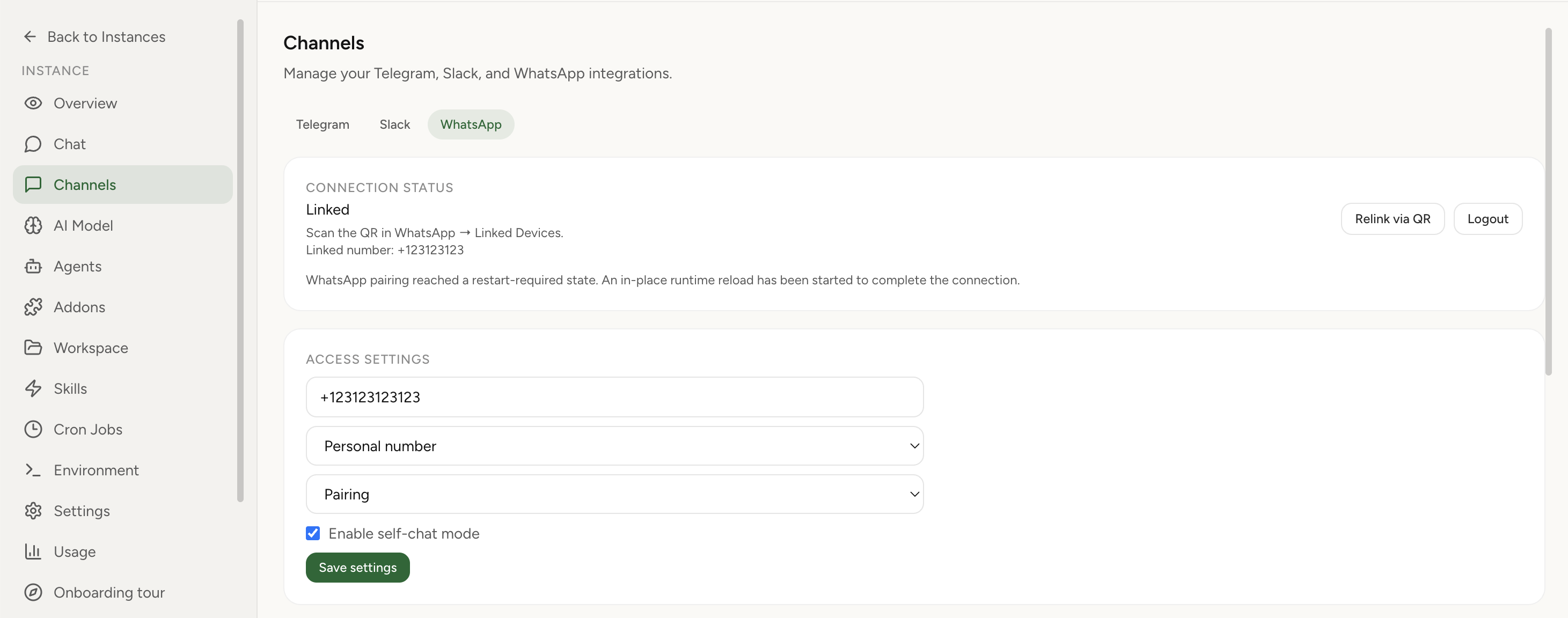
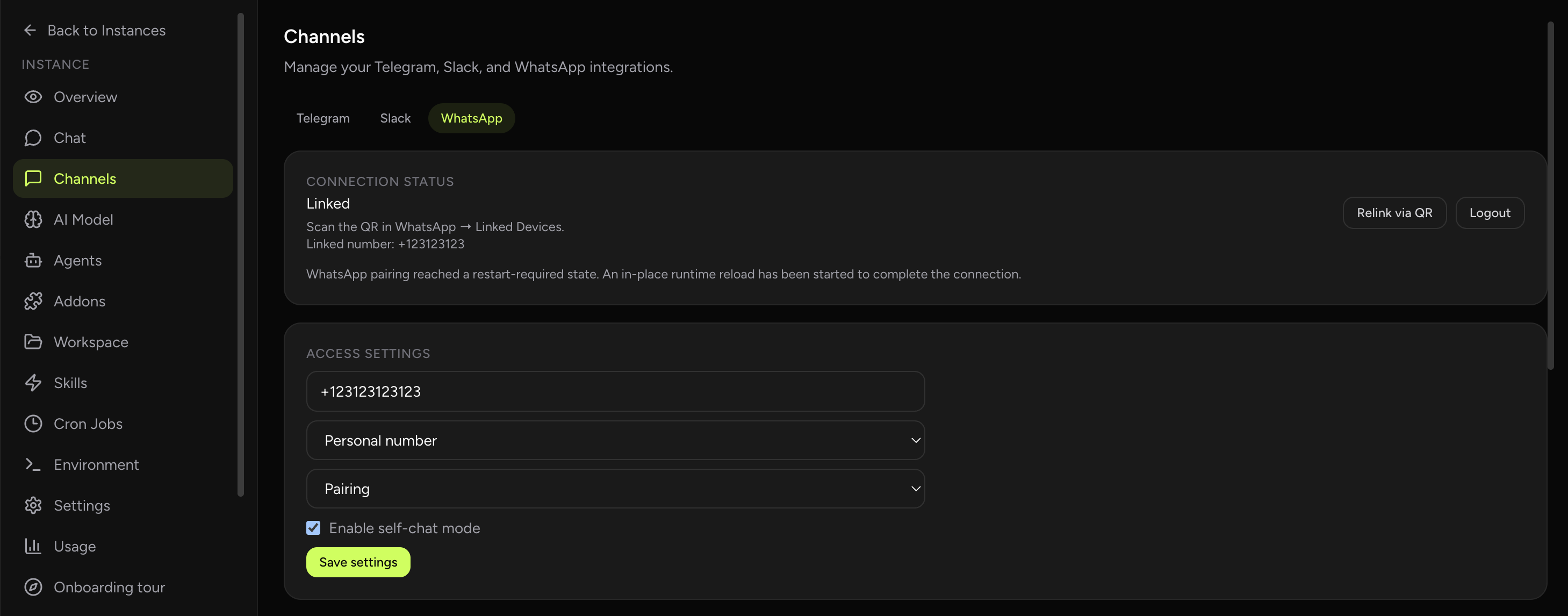
After the first successful link, the same WhatsApp tab lets you manage the channel:
- Update the owner number, phone mode, DM policy, and self-chat mode with Save settings.
- Add or remove WhatsApp user and group allowlist entries.
- Use Relink via QR if you need to re-pair the account.
- Use Logout to remove the linked WhatsApp auth state from the instance.
Troubleshooting
- The wizard rejects my phone number
- Use E.164 format with a leading
+, for example+15551234567. Owner number is required unless DM access is explicitly open. - I launched the instance but WhatsApp still is not connected
- That is expected. Launch only saves the config. The actual WhatsApp connection starts later from the dashboard when you generate and scan a QR code.
- I scanned the QR but nothing changed
- Return to the dashboard and click I scanned it. The app waits for the link result only after that confirmation.
- I need to change phones or reconnect the account
- Open the WhatsApp tab and use Relink via QR. If you want to clear the existing connection completely, use Logout first.
How it looks in the product
The WhatsApp channel lives in the dashboard alongside the other messaging integrations. This is the tab where you generate the QR code, confirm the scan, review linked status, update access settings, and manage relinking or logout.