How to remove OpenClaw: Full uninstall guide (Mac, Linux, Windows)
Whether you are performing a fresh re-installation or moving your operations to a managed environment, fully removing OpenClaw requires more than just deleting the application folder. This guide covers the manual cleanup of background services (Gateway), configuration paths, and state directories.
Before you wipe your installation, consider if you need your agent's memory. Local uninstalls are destructive by default. If you simply want to stop the bot without giving it amnesia, scroll to the Managed Advantage section below.
Where does OpenClaw store data?
By default, OpenClaw is "self-contained" within your user profile. If you are cleaning up manually, look for these three main components:
🧠 State & Memory (~/.openclaw)
This is the "soul" of your agent. It contains:
lcm.db: Long-term conversation memory.sessions/: Raw message history and tool logs.openclaw.json: Your API keys, configs, and provider tokens.credentials/: Specific auth tokens for Google, Slack, etc.
📂 Workspace (~/.openclaw/workspace)
This is where your agent lives and works. It includes:
SOUL.md,USER.md,MEMORY.md: The vital context files.- User files and code projects your agent has generated.
memory/: Daily worklogs and session snapshots.
⚙️ System Services
Background persistence files:
ai.openclaw.gateway.plist(Mac)openclaw-gateway.service(Linux)- "OpenClaw Gateway" Scheduled Task (Windows)
Understanding Uninstall Modes
Depending on why you are removing OpenClaw, you might want to keep certain parts. Here are the common "modes" of removal:
| Target | Mode | Action |
|---|---|---|
| Gateway Only | "Soft stop" | Stops background execution but keeps all your configuration and memory intact for a future re-install. |
| Config + Memory | "Clear Data" | Resets OpenClaw to factory defaults. Your API keys and memories are gone, but your workspace files remain. |
| Full Wipe | "Factory Reset" | Removes everything: services, config, memory, and your workspace projects. Irreversible. |
1. The "Easy Path" (CLI Still Installed)
If the openclaw command is still functional in your terminal, the built-in uninstaller is the safest method. It supports granular flags depending on what you want to keep:
The "Nuclear" Option (Deletes Everything)
openclaw uninstall --all --yesRemoves background services, config files, and the entire workspace.
The "Migration" Option (Keeps Workspace)
openclaw uninstall --service --configStops background services and removes API keys/memory, but leaves your MEMORY.md and project files untouched in the workspace.
The "Service Only" Option
openclaw uninstall --serviceOnly removes the background launcher. Your data remains perfectly intact for manual CLI use.
2. Manual Manual Removal per OS
If the CLI is missing but you still see "OpenClaw" processes running, follow these platform-specific steps:
🍎 macOS (launchd)
1. Stop the background service:
launchctl bootout gui/$UID/ai.openclaw.gateway2. Delete the service definition:
rm ~/Library/LaunchAgents/ai.openclaw.gateway.plist🐧 Linux (systemd)
1. Stop and disable the user unit:
systemctl --user disable --now openclaw-gateway.service2. Remove the file and reload:
rm ~/.config/systemd/user/openclaw-gateway.service
systemctl --user daemon-reload
🪟 Windows (Scheduled Task)
1. Delete the task via PowerShell (Admin not required if user-installed):
schtasks /Delete /F /TN "OpenClaw Gateway"2. Delete the gateway script:
Remove-Item -Force "$env:USERPROFILE\.openclaw\gateway.cmd"3. The Managed Advantage: Pause vs. Delete
Managing local uninstalls is a chore. On OpenClaw Setup, we treat instance lifecycles
as a first-class feature. Users don't need to hunt for hidden .plist files or
stray systemd units.
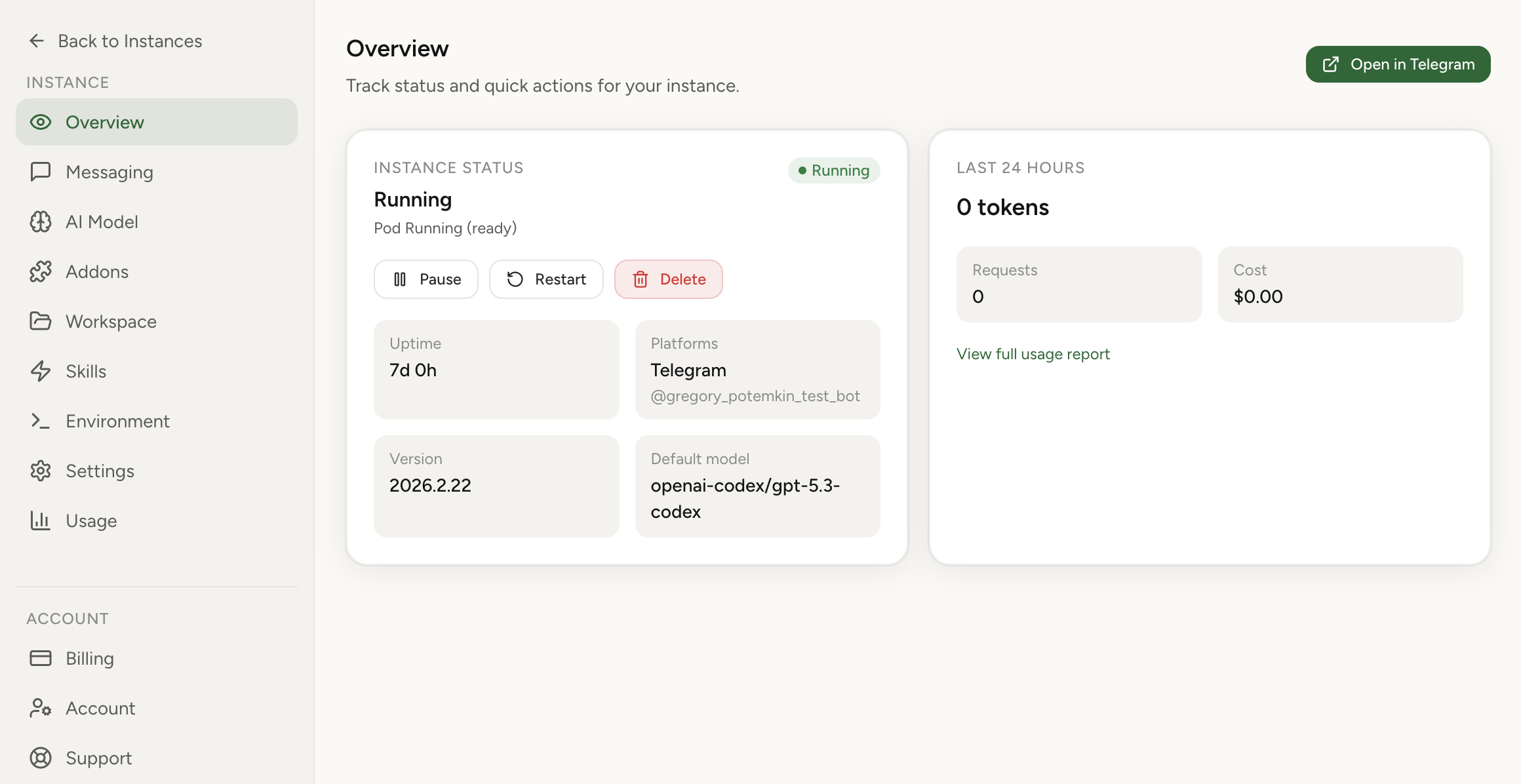
The managed dashboard provides simple toggle-based controls for pausing or deleting instances.
Stop babysitting your infrastructure. Launch a managed instance or import your existing local context today.