OpenClaw backup before upgrades: how to prevent one bad release from becoming a full rebuild
Problem statement: your agent is working, your channels are connected, and a new OpenClaw release lands. The upgrade looks routine right up until replies stop arriving, Control UI behavior changes, or an approval loop breaks in production. The fastest way to turn that situation from a crisis into a controlled recovery is simple: create a backup before the upgrade, verify it, and know exactly what success and failure look like before you touch the live runtime.
- OpenClaw releases published on 2026-03-09 and 2026-03-12 include major runtime, auth, Telegram, browser, and cron changes.
- The 2026-03-09 release added
openclaw backup createandopenclaw backup verify, signaling that backup safety is now a first-class operator workflow. - Recent upgrade and runtime issues across the community show the same pattern: the teams that recover fastest already captured a clean pre-change state.
Why backup discipline matters more in OpenClaw than in ordinary apps
OpenClaw is not a simple stateless web app. It sits in the middle of live agent conversations, credentials, messaging channels, browser connections, cron jobs, workspace files, and sometimes business-critical automations. That means a broken release can have a wider blast radius than “the app is down.” It can interrupt chat flows, leave operators with stale assumptions, break channel delivery, or create partial state that is harder to debug after the fact.
A pre-upgrade backup is not just a copy of files. It is a way to preserve a known-good operating state. That changes the recovery conversation completely. Instead of asking “what did we lose?” you can ask “which layer changed, and do we restore or patch forward?” That is a calmer, faster, cheaper question.
What should be protected before you upgrade
- Gateway config: bindings, provider settings, auth details, and runtime behavior.
- Workspace state: memory files, local references, scripts, and task-specific assets.
- Channel configuration: Telegram, Slack, Discord, webhook, or browser-related routing.
- Operator notes: what version you run, what changed last, and what “healthy” looks like for your team.
- Restore expectations: which workflows must come back first after rollback.
If you skip any of these, you risk creating the worst kind of backup: one that restores only enough to look promising, but not enough to make production safe.
The practical pre-upgrade workflow
1) Define the success criteria before you touch anything
Write down the exact behaviors that matter for your environment. For most teams that means at least: a real inbound message receives a real outbound response, Control UI loads, one scheduled task runs, and one tool call succeeds. If you do not define success first, you will be tempted to declare victory too early later.
2) Create the backup while the system is still healthy
Do not wait until you already suspect instability. The point is to capture the system before you introduce risk. For teams using the new backup flow, create the archive before the upgrade window opens and store it in a location you can still reach if the main host misbehaves.
3) Verify the backup immediately
A backup you never verify is wishful thinking with a filename. Use the verification step right away. Confirm the archive exists, the payload is readable, and the backup actually contains the state you expect. Do not postpone verification until after something breaks.
4) Record the baseline version and environment details
Capture the release you are on, any environment-specific overrides, and whether you are running a proxy, remote browser flow, or custom channel routing. The more OpenClaw touches in your setup, the more you need a small written record of the baseline.
5) Upgrade one thing at a time
Do not combine an OpenClaw release, config cleanup, proxy edit, and credential change in the same maintenance window. If several things move at once, you will not know which change actually broke the system.
6) Run a real-world verification pass
Test the exact workflows your team depends on. Synthetic checks are helpful, but they do not replace a real message, a real agent task, and a real operator confirmation path. One passing page load does not mean the upgrade is safe.
How to diagnose whether you should restore or keep debugging
This decision is where most teams waste time. The answer is not “always restore” or “always patch forward.” The right choice depends on blast radius, time pressure, and how clearly you can isolate the failure.
- Restore quickly if the failure is user-facing, widespread, or blocks revenue-critical workflows.
- Patch forward if the issue is isolated, reproducible, and low risk to fix without further drift.
- Pause and investigate if symptoms are inconsistent and you still lack a clean reproduction.
The backup gives you options. Without it, your team often keeps debugging longer than it should because rollback feels too risky.
Common upgrade failures where backups save hours
Messaging works partially, but not reliably
These failures are dangerous because operators assume the release is “mostly fine.” A bot may show typing, partial previews, or intermittent responses, while the real user experience is already broken. A rollback baseline lets you compare behavior cleanly instead of guessing whether the issue is temporary.
Control UI still loads, but the runtime behavior changed
UI access does not prove that sessions, cron, or channel delivery are healthy. Teams often lose time here because the interface looks alive. You need workflow-level checks, not cosmetic confidence.
Auth or token handling drifts after update
Shared tokens, device tokens, and browser-related auth changes can produce reconnect churn or confusing trust failures. When that happens, restoring a known-good state can be the fastest way to re-establish service while you investigate the new auth path separately.
Edge cases that make backup recovery harder than expected
- Backup exists, but not off-host: a host-level issue leaves the archive inaccessible.
- Config was captured, but not workspace files: the agent starts, but important local context is gone.
- Verification was skipped: archive looks healthy until restore time.
- Multiple changes happened at once: restore succeeds, then a second unrelated change reintroduces the same failure.
- Success criteria were vague: team restores, sees one green check, and misses a still-broken user path.
How to verify that the recovery actually worked
- Send a real message through the primary channel and confirm a complete final reply.
- Open Control UI and verify the expected operator path, not just the landing page.
- Run one low-risk scheduled task or manual trigger that your team uses in production.
- Confirm memory/workspace context is still available where needed.
- Check logs for repeated retries, token churn, or preview/final mismatches after apparent recovery.
Recovery is not “the process restarted.” Recovery is “the workflows our team relies on behave normally again.”
Typical mistakes that turn a clean backup plan into a bad incident
- Creating the backup after the release already introduced problems.
- Saving only config and forgetting the workspace.
- Assuming the new backup command removes the need for a restore test.
- Upgrading on Friday evening without clear rollback ownership.
- Letting one engineer keep all recovery steps in their head instead of writing a short runbook.
When self-hosting stops being the real bottleneck
Some teams read backup guidance and conclude that they simply need more discipline. Sometimes that is true. But sometimes the deeper issue is that the team no longer wants to spend product time on release safety, rollback planning, and operator-grade restore procedures. If upgrade hygiene keeps interrupting shipping, the problem is not just tooling. It is the operating model.
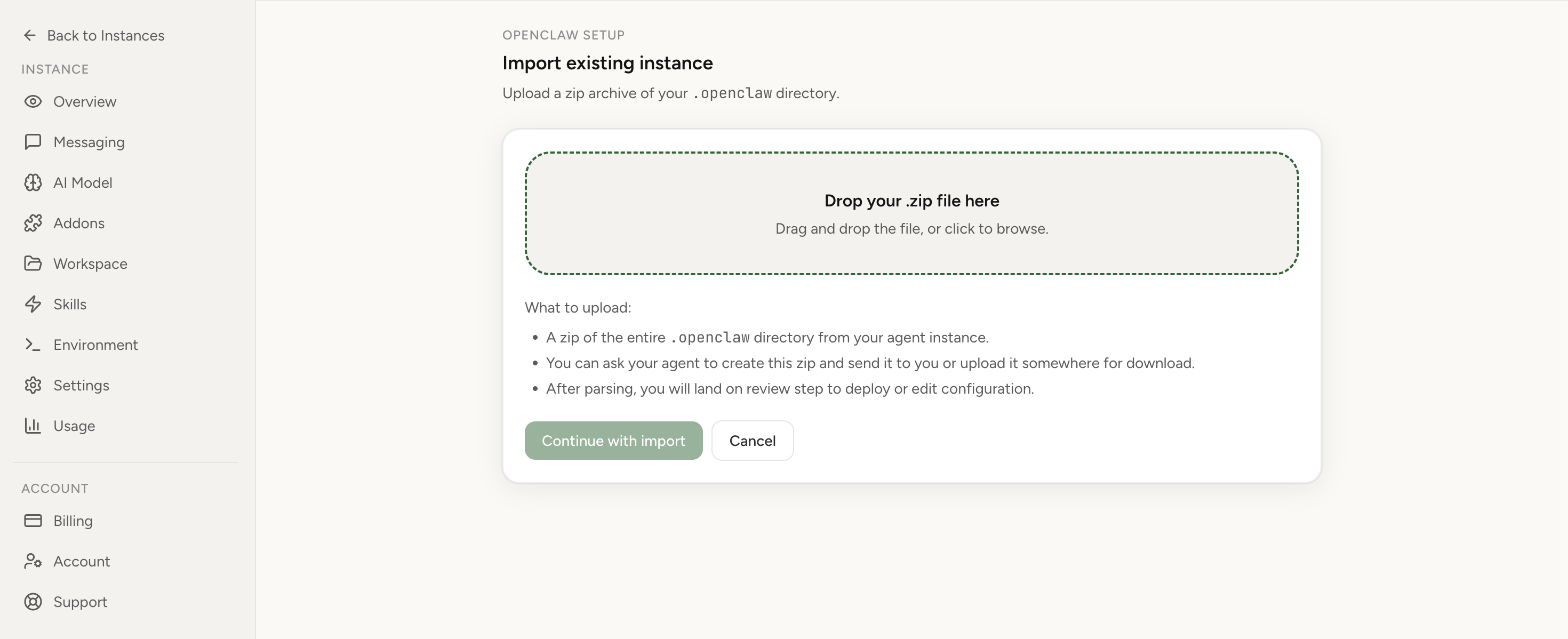
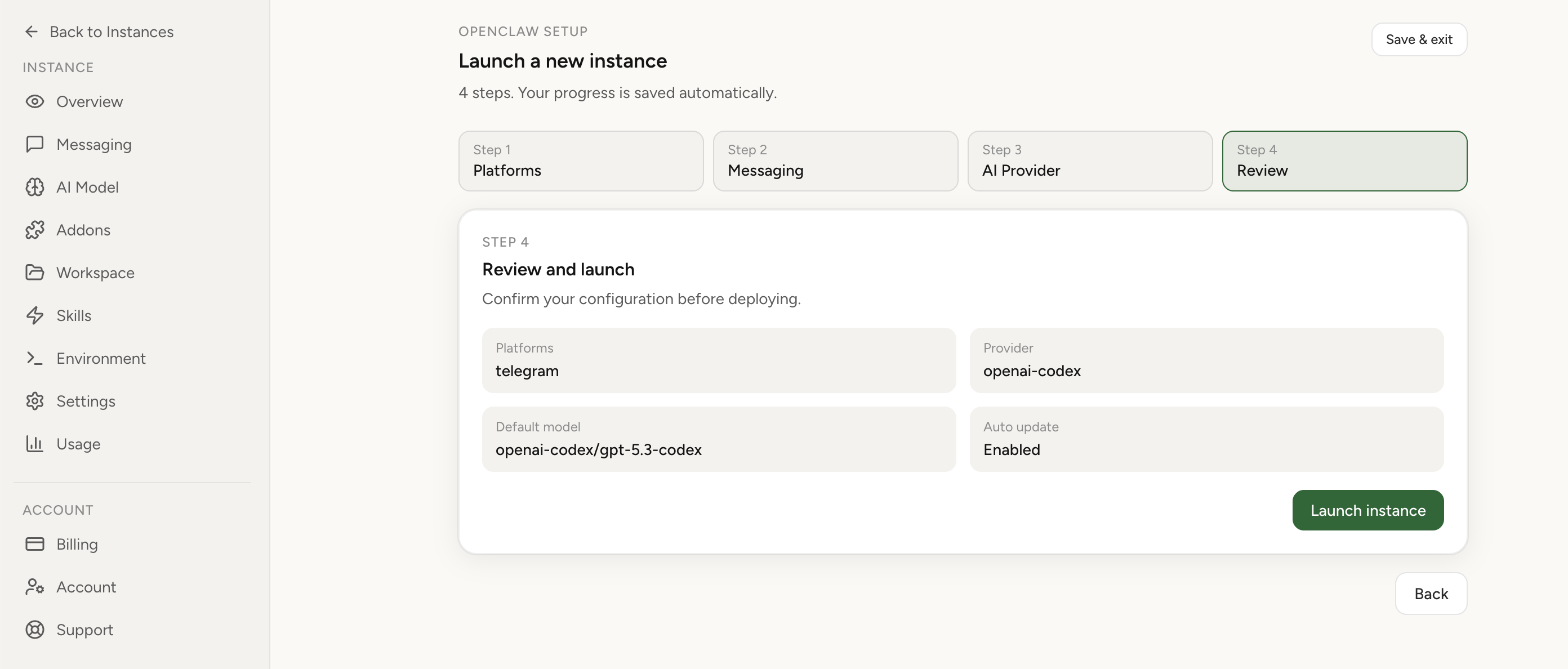
If you want the control of OpenClaw without rebuilding after every rough upgrade, compare self-hosted vs managed at /compare/. If you would rather import your current setup and keep moving, start at app.openclaw-setup.me/login. For a full deployment baseline, see /openclaw-setup/.
Fix once. Stop recurring upgrade recovery work.
If this keeps coming back, you can move your existing setup to managed OpenClaw cloud hosting instead of rebuilding the same stack. Import your current instance, keep your context, and move onto a runtime with lower ops overhead.
- Import flow in ~1 minute
- Keep your current instance context
- Run with managed security and reliability defaults
If you would rather compare options first, review OpenClaw cloud hosting or see the best OpenClaw hosting options before deciding.
FAQ
What is the minimum backup routine before an OpenClaw release?
Create the backup, verify it immediately, record the current release and critical config assumptions, and run a short post-upgrade workflow test.
How often should we test restore?
At minimum, test your restore path after major process changes and before you depend on the backup for a critical production environment. If the agent supports revenue or customer operations, test more often.
Can a managed setup still benefit from this mindset?
Yes. The same thinking applies: know your baseline, verify change safety, and protect continuity. The difference is who owns the operational burden day to day.