OpenClaw ClawHub skill install change: how to recover safely
Problem statement: your old OpenClaw skill workflow no longer behaves the way it used to. A skill that previously installed from a loose path, a copied folder, or an ad-hoc package command now fails, updates inconsistently, or leaves your team unsure which copy of a skill is actually active. This is exactly the kind of break that appears after OpenClaw shifts skill management toward a supported ClawHub path. The right response is not to pile on more manual workarounds. It is to standardize the install path, verify provenance, and rebuild a clean skill lifecycle you can trust.
- The OpenClaw beta cycle on 2026-03-28 explicitly shipped changes around ClawHub skill flows, discovery, installation, and maintenance.
- In our own hosted implementation, skill operations were standardized through a dedicated service path that runs
clawhub update <slug>and refreshes the installed-skill list after completion. We built that because ad-hoc skill handling becomes hard to support and harder to trust. - Our dashboard worklog from 2026-02-24 and 2026-03-20 shows the same pattern: once teams manage skills at scale, they need one repeatable install/update path instead of a mix of local folders, copied snippets, and one-off shell commands.
What actually changed
The important change is not just that a command moved. It is that the OpenClaw ecosystem is treating skills less like random local files and more like managed artifacts. That improves consistency, but it also exposes older habits that were fragile from the start: installing directly from a local checkout without provenance checks, keeping multiple copies of the same skill in different places, updating one copy while the runtime loads another, or assuming every published skill should be trusted equally.
If your workflow depended on those habits, the new ClawHub-oriented behavior can feel like a regression. In practice, it is often revealing a workflow that was already unsafe, unrepeatable, or impossible to support across multiple machines.
Why teams get stuck here
Skill installation problems are rarely about one package command. They are usually a stack of small mistakes:
- Unclear source of truth: nobody knows whether the runtime should load the published ClawHub version, a local folder, or a copied artifact from another machine.
- Unsafe install habits: a team starts bypassing normal checks “just for now,” then forgets which skills were installed that way.
- Path confusion: a repo-local copy and an installed copy both exist, so updates land in one place while the runtime uses another.
- No update discipline: installs and updates happen manually, so environments drift and operators stop trusting what is running.
- No verification step: after installing a skill, teams do not verify discovery, execution, or post-update behavior before moving on.
When you put those together, a ClawHub install-flow change does not create the mess. It exposes it.
How to diagnose the break cleanly
- List every currently installed skill. Do not rely on memory. Capture the actual installed set and their visible slugs.
- Map each skill to its source. Decide whether it came from ClawHub, a local folder, or an older manual install path.
- Check for duplicates. If the same skill exists as both a published install and a repo-local copy, treat that as a priority problem.
- Review recent updates. Identify which skills were changed around the March 28 OpenClaw change window.
- Run one end-to-end test per affected skill. Discovery alone is not enough. You need to confirm the skill still behaves correctly when invoked.
Step-by-step recovery plan
Step 1: stop mixing install models
Choose one supported path for the skills you actually depend on. For most teams, that means published ClawHub installs for normal operation and a clearly separated local development path only when you are actively authoring a skill. If you keep mixing those two models, you will keep re-creating the same debugging problem.
Step 2: remove ambiguity around active copies
The most common cause of “I updated the skill but nothing changed” is that the runtime is loading a different copy than the one you edited. Resolve that before doing anything else. One active source per skill. No exceptions.
Step 3: re-install or update from the supported source
Once you know the desired source, re-install or update through that path only. In our own hosted stack, we standardized updates through ClawHub because it gives a repeatable, reviewable path and lets us refresh the skill inventory after each action. That is the model to copy even if you are self-hosting: one supported install path, one visible installed state, one verification pass.
Step 4: verify behavior, not just presence
A skill can appear installed and still be broken in practice. After each recovery action, verify three things:
- The skill shows up where you expect it to.
- The runtime can invoke it successfully.
- The returned behavior matches the version you intended to install.
Step 5: document exceptions immediately
If you truly need a local-only or force-installed skill, document why, who owns it, how it should be updated, and what risk you accepted by doing it. Undocumented exceptions are how temporary workarounds turn into production landmines.
Safe migration rules that prevent repeat incidents
- Default to published, reviewable skill sources.
- Treat force-install paths as exceptional.
- Never update a skill without checking which copy is active.
- Do not let different instances drift onto different skill versions without intent.
- Keep skill development and production consumption separate.
- After each upgrade window, retest your critical skills before assuming everything is fine.
Typical mistakes that make the problem worse
- Trying a second workaround before proving the first one failed.
- Installing the same skill from multiple locations “just to be safe.”
- Bypassing trust checks without documenting which skill was installed that way.
- Assuming a repo checkout is the same thing as an installed runtime artifact.
- Updating skills individually across instances instead of standardizing the process.
- Calling the issue fixed because the skill appears in a list, without invoking it.
Edge cases to watch
Not every break will look identical. A few edge cases matter:
- Custom internal skills: if you built your own skill outside the normal publishing path, you need an explicit ownership model or it will keep drifting.
- Mixed dev and prod hosts: a development machine may tolerate local-folder installs that a production host should never accept.
- Emergency patches: one urgent manual change can leave your production environment permanently out of sync unless you reconcile it afterward.
- Security reviews: a skill may technically install but still fail your actual risk threshold once you inspect its source and behavior.
A better long-term operating model
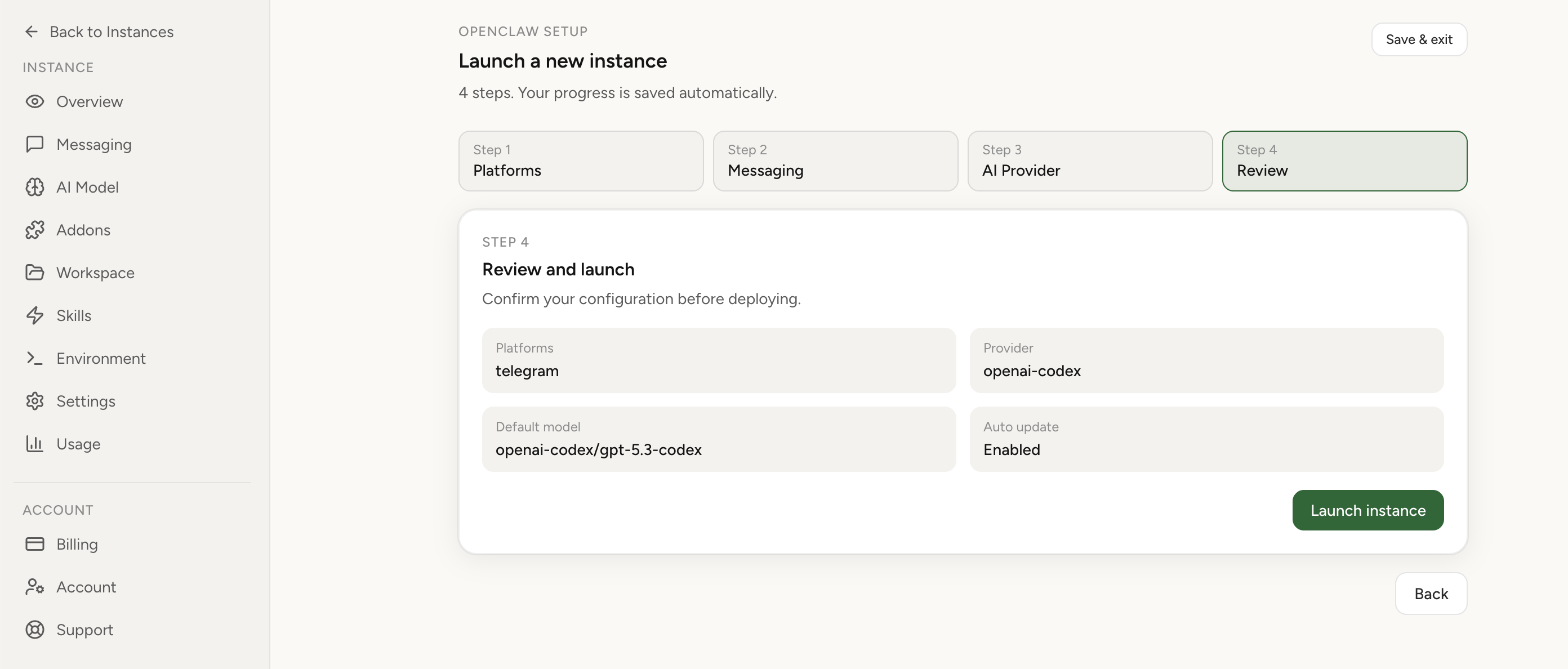
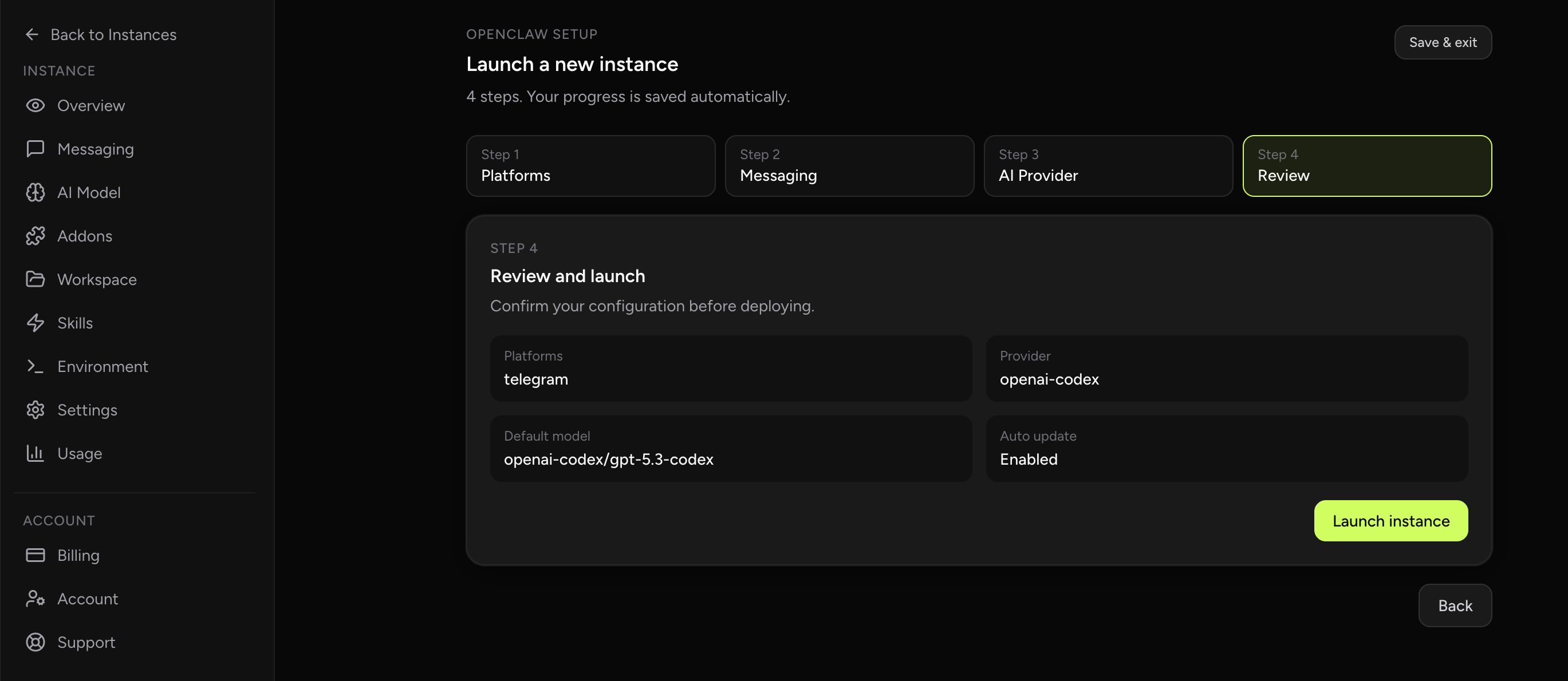
If your team depends on OpenClaw skills but does not want to keep owning install provenance, update discipline, and rollback hygiene, move that burden out of the critical path. See deployment options, review managed OpenClaw hosting, or sign in at OpenClaw Setup to run skills in an environment where the install/update flow is already structured.
Fix once. Stop recurring skill install and update drift.
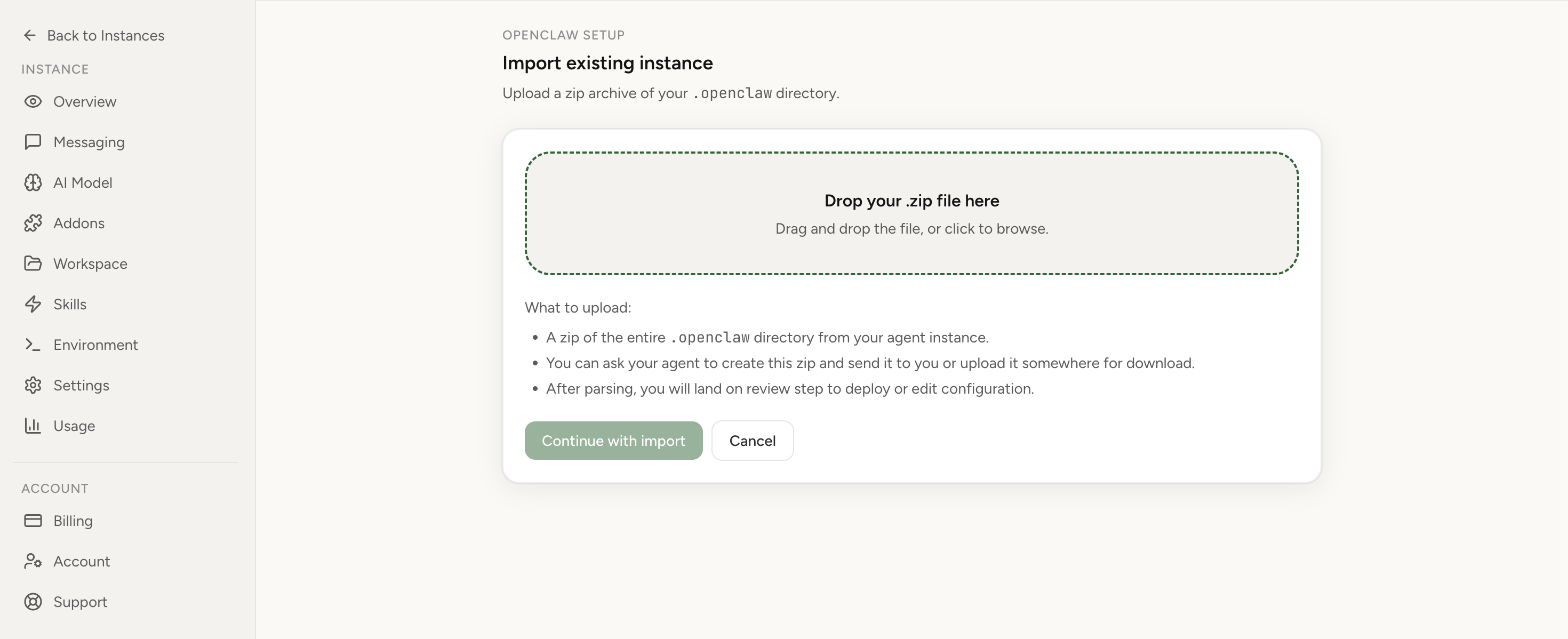
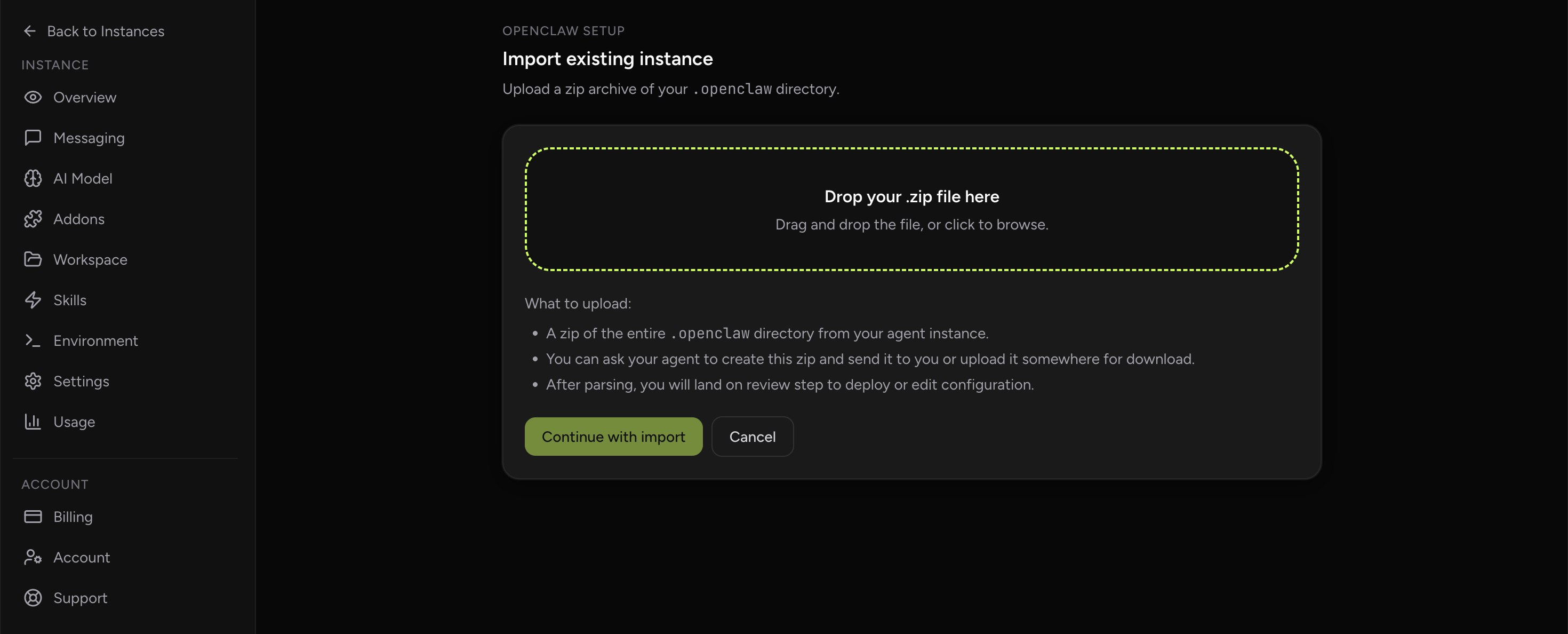
If this keeps coming back, you can move your existing setup to managed OpenClaw cloud hosting instead of rebuilding the same stack. Import your current instance, keep your context, and move onto a runtime with lower ops overhead.
- Import flow in ~1 minute
- Keep your current instance context
- Run with managed security and reliability defaults
If you would rather compare options first, review OpenClaw cloud hosting or see the best OpenClaw hosting options before deciding.
How to verify the fix worked
- Install or update the affected skill from the chosen supported source.
- Refresh your visible skill inventory.
- Invoke the skill in a controlled test.
- Confirm the observed behavior matches the version you intended to run.
- Repeat the same test on the second environment that matters most to you: staging, another operator machine, or production.
- Document the new standard path so the next operator does not reopen the same wound.
FAQ
Should I uninstall and reinstall every skill after this change?
No. Start with the skills that are failing, the skills your team depends on most, and any skills with unclear provenance. The goal is not busywork. The goal is a trusted, repeatable inventory.
What if I need to keep one internal unpublished skill?
That can be reasonable, but treat it as an explicit exception with ownership, documentation, and a defined update method. The problem is not custom skills. The problem is undocumented custom skills.
Is this mainly a security issue or an operations issue?
Both. Trust and provenance matter because skills can execute meaningful work. But the day-to-day pain usually shows up first as an operations problem: drift, confusion, and broken updates.
Where should I learn more before standardizing my skill workflow?
Read the practical background in our OpenClaw skills guide, compare runtime options on the comparison page, and review the hosted path at OpenClaw cloud hosting if you want to stop carrying the install/update burden yourself.