Do I need a separate Paperclip account?
No. OpenClaw Setup provisions and manages the workspace for you. There is no external Paperclip account or signup required.
Connecting a remote OpenClaw instance to Paperclip means manual API key setup, endpoint configuration, and re-syncing every time something changes. OpenClaw Setup does all of that automatically — enable Paperclip once, and your agents stay in sync from that point on.
OpenClaw Setup provisions and maintains a Paperclip workspace for your account automatically. Choose which instances to include, enable the workspace with one click, and agents from your selected instances mirror themselves in. No endpoint wiring, no manual re-sync, no API key juggling.
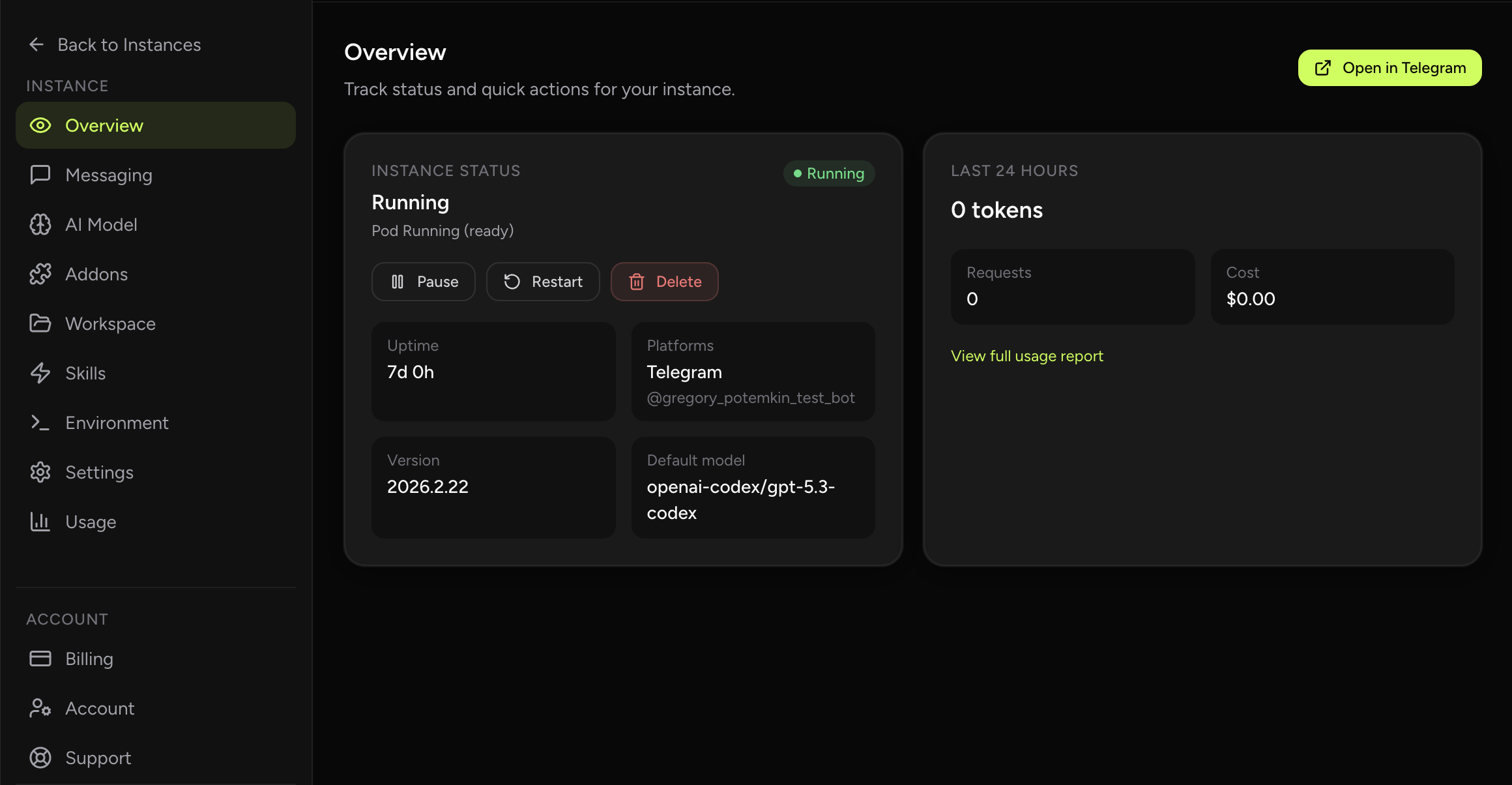
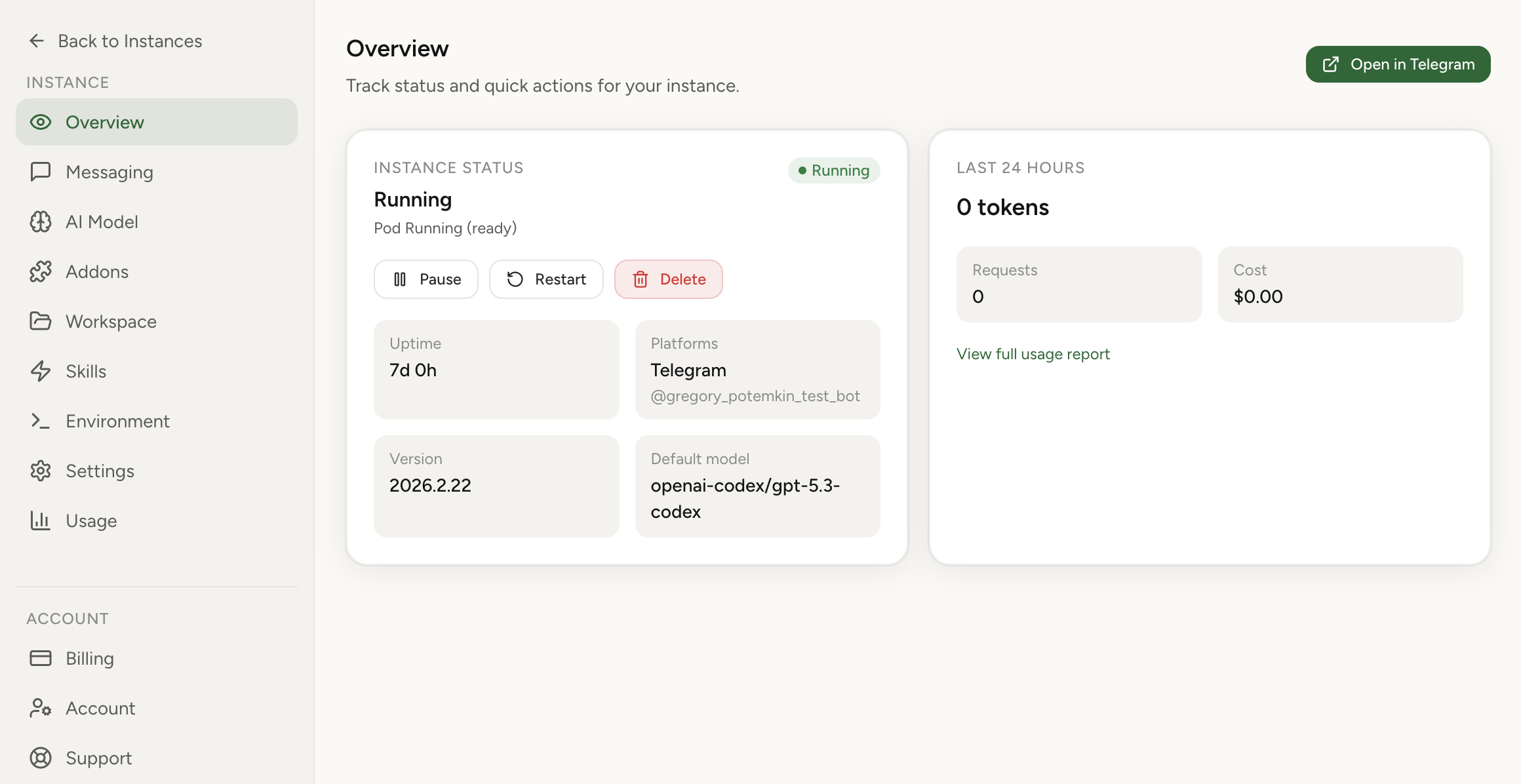
Real product screenshot
Paperclip is designed to work with AI agents, but wiring a self-hosted or remote OpenClaw instance into a Paperclip workspace involves real setup work: generating API keys, pointing Paperclip at the right endpoint, and handling authentication on both sides.
That's manageable once, but it breaks the moment you add a new agent, rename an existing one, or change your instance configuration. Every structural change means a manual re-sync cycle, and when you're running multiple instances, the overhead compounds quickly.
OpenClaw Setup handles the full connection lifecycle automatically. When you enable Paperclip from the dashboard, a workspace is provisioned for your account and immediately connected to the instances you select.
From that point on, agent sync runs automatically — whenever you add, rename, or remove an agent in any of your selected instances, the Paperclip workspace reflects the change without any manual intervention.
The Paperclip workspace is owner-only — your account, your workspace, launched directly from the dashboard. You can pause sync by disabling Paperclip, or remove everything permanently with the full-delete option.
Full delete wipes the workspace, storage, service, and network policies for your account. Nothing lingers.
No. OpenClaw Setup provisions and manages the workspace for you. There is no external Paperclip account or signup required.
You choose. The instance picker in the Paperclip tab lets you select any combination of your instances. All instances are selected by default when you first enable it.
Sync runs automatically after agent and instance changes. There is no schedule to configure and no manual re-sync step — it stays current as you make changes.
The workspace is owner-only for now. You can launch it directly from your dashboard, but collaborative access for team members is not yet available.