How to keep OpenClaw online when your laptop sleeps: the practical paths that actually work
Problem statement: a lot of people discover OpenClaw on a laptop, get real value from it fast, and then run into the same wall: the assistant is only “always on” until the laptop lid closes. Recent videos, hosted OpenClaw announcements, and the latest remote-access docs all point at the same user intent: people want an assistant that stays reachable when they step away, travel, or let their main machine sleep. The hard part is doing that safely, without turning a personal laptop into a sloppy public server.
- A March 9 YouTube explainer highlighted the appeal of OpenClaw as an assistant that keeps working while you are away from the keyboard.
- The March 12 remote-access docs expanded guidance around SSH tunnels, tailnets, and keeping the gateway loopback-only.
- Hosted OpenClaw providers continue publishing around the same pain point: users want the assistant available without having to baby-sit the machine underneath it.
The real goal is not “wake my laptop remotely”
Most people frame the problem as a laptop problem: how do I keep my MacBook or ThinkPad awake forever, or how do I reconnect after sleep? That is understandable, but it is the wrong first question. The real goal is simple: keep OpenClaw reachable and useful whenever you need it. Once you frame it that way, the solution space becomes clearer. You do not necessarily need to fight your laptop’s power management. You need a runtime location and access pattern that match your uptime needs.
What actually goes down when the laptop sleeps
- The gateway process stops being reachable.
- Local browser helpers, relay paths, and socket connections disappear.
- SSH tunnels from other devices collapse.
- Scheduled jobs cannot fire if the runtime itself is asleep.
- Health checks become meaningless because the host is not awake to answer them.
This is why “it worked fine on my desk” does not translate into dependable remote access. OpenClaw is not just an app window. It is a runtime plus channels plus tools plus state.
The three workable ways to stay online
Option 1: Keep the laptop as the host, but accept the limits
This can work for personal use if your needs are light and you are comfortable with downtime when the machine sleeps, reboots, or changes networks. It is the lowest-friction way to get started, but it is not the strongest answer for scheduled jobs, travel, or business workflows.
Option 2: Move the runtime to an always-on machine you control
A home server, small VPS, or desktop that remains online solves the uptime problem more directly. This path is attractive if you want control and are comfortable managing updates, security, networking, and backups yourself. The March 12 remote-access docs point in this direction with a clear model: keep one gateway on a persistent host and reach it through SSH or a private network.
Option 3: Use managed hosting
This is the simplest answer when your real priority is using OpenClaw, not running infrastructure. You keep the assistant available without turning your own machine into the system that must stay awake all the time. For many users, especially once OpenClaw becomes operational rather than experimental, this is the most practical path.
The safest access pattern for self-managed uptime
If you self-manage, the safest default is not “open a port and hope.” It is to keep the gateway loopback-only and access it through SSH tunneling, a tailnet, or another deliberate private path. The remote-access docs say the same thing for a reason: broad public exposure turns convenience into risk very quickly.
In practice, a good self-managed pattern looks like this: one always-on host runs the gateway, other devices connect to it through a controlled tunnel, and the public internet never gets a raw open management surface unless you absolutely know what you are doing.
How to choose the right path
| Your situation | Best starting point | Main tradeoff |
|---|---|---|
| Personal experiments, low uptime needs | Laptop host | Sleep, travel, and reboots break availability |
| You want control and can operate infrastructure | Always-on VPS or home server | You own security, upgrades, and incident response |
| You want availability with less maintenance | Managed hosting | Less raw control than full self-hosting |
Step-by-step: deciding whether your laptop is still enough
- List the workflows that truly need OpenClaw while you are away.
- Note whether those workflows depend on cron, heartbeat, inbound messages, or browser actions.
- Estimate how often sleep, battery, travel, or Wi-Fi changes interrupt those workflows.
- Compare that interruption cost against the cost of an always-on runtime.
- Pick the path that reduces operational friction instead of admiring the cheapest sticker price.
Why “just prevent sleep” is not the same as solving uptime
Preventing sleep can extend availability for a while, but it does not solve network changes, reboots, accidental shutdowns, browser dependency drift, or the basic reality that a laptop is not designed to be your most reliable server. If OpenClaw is becoming part of your routine, especially for business or team workflows, you eventually need to decide whether you are building a dependable system or stretching a temporary setup beyond its natural limits.
Edge cases people forget
- Browser-dependent flows: even if the gateway stays online, some browser tasks may still depend on a local desktop context.
- Travel days: network handoffs and sleeping laptops break remote access at the worst time.
- Scheduled jobs: cron and heartbeat need an awake runtime, not just an install that exists somewhere.
- Security posture: opening ports to “fix access” can create a much bigger problem than downtime.
- Shared team use: once other people rely on the assistant, your personal laptop is no longer a neutral hosting choice.
Start by comparing deployment models on /compare/. If you want the hosted path, review /openclaw-cloud-hosting/. If you still want to self-manage, keep the baseline checklist at /openclaw-setup/ and build around one always-on host, not a laptop that disappears when your day gets busy.
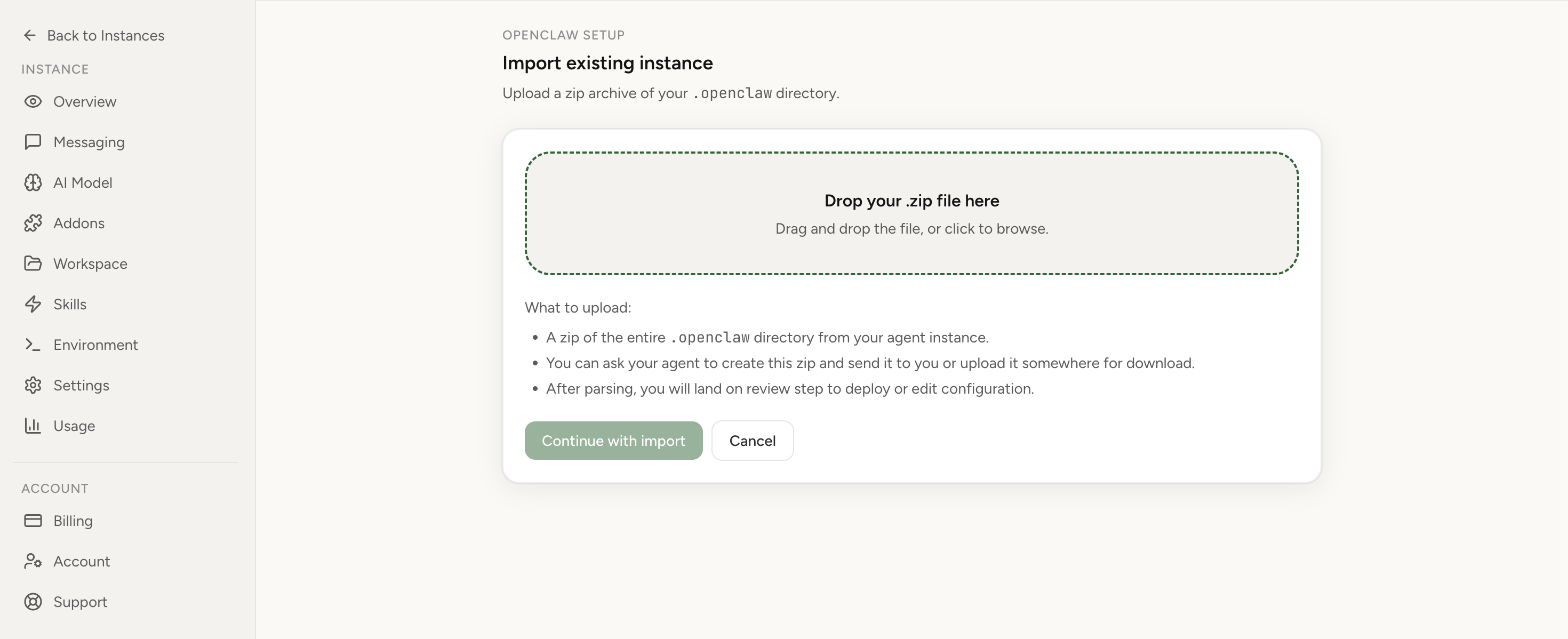
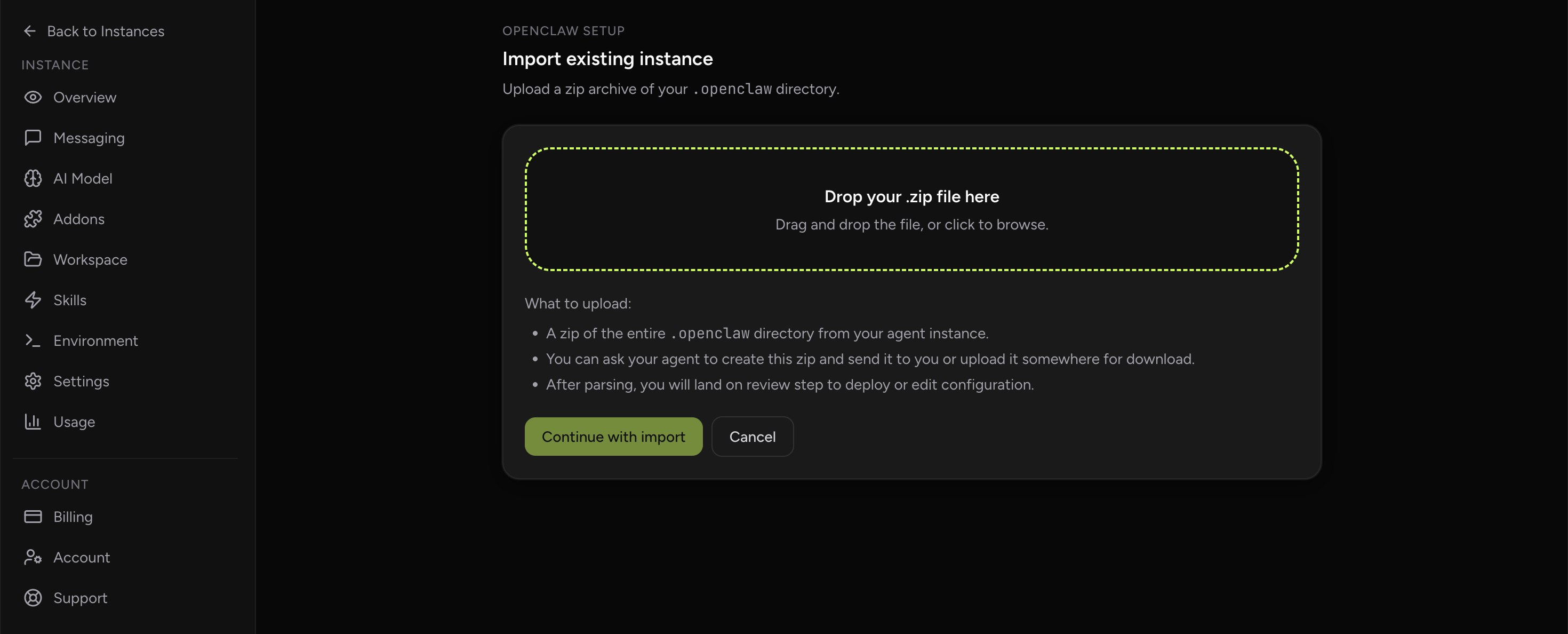
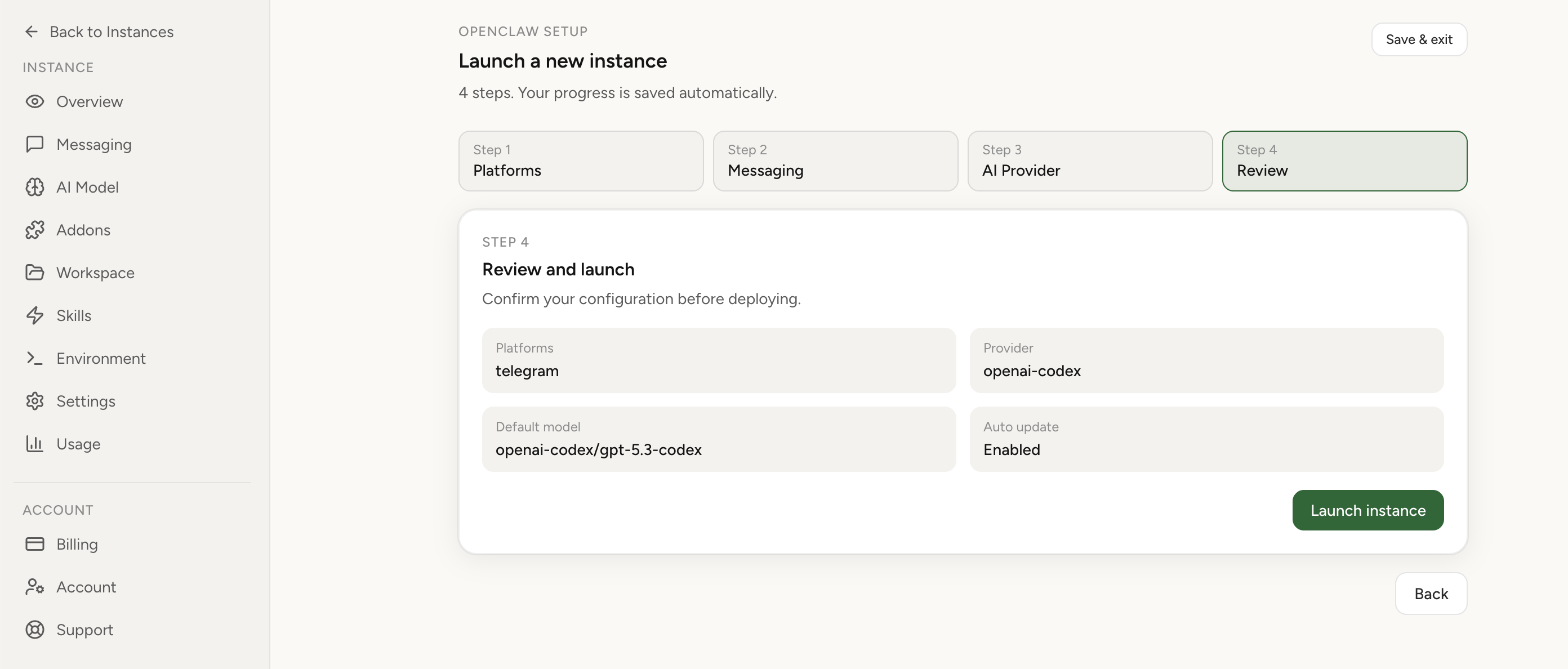
Import your current OpenClaw instance in 1 click
If the only thing standing between you and dependable uptime is that the runtime lives on a sleeping laptop, move the working setup instead of rebuilding it from scratch. Import your current instance, keep your context, and switch to a deployment path designed to stay awake.
How Chrome-based workflows fit into the uptime question
This is where many users get tripped up. They move the gateway to an always-on host and then wonder why one browser workflow still depends on the local machine. That is not a contradiction. Some flows are gateway-hosted. Others interact with a real local browser context. When that matters, the right companion feature is usually the Chrome Extension Relay, which lets you connect a real local Chrome tab when needed without forcing the whole runtime to live on the laptop full time.
Typical mistakes that make this harder than it needs to be
- Trying to force the laptop to behave like a production server forever.
- Exposing the gateway broadly just to solve remote reachability fast.
- Ignoring scheduled-job requirements when choosing the host location.
- Assuming browser access and runtime hosting must always be the same machine.
- Rebuilding everything manually instead of importing an already useful setup.
Verification checklist for an actually-always-on setup
- OpenClaw remains reachable while the original laptop sleeps.
- One inbound message workflow works when you are away from the host machine.
- One scheduled workflow completes at the expected time.
- You know which browser workflows need local relay and which do not.
- The access pattern keeps the management surface private by default.
When managed hosting is the honest answer
If you are still early, self-hosting teaches you a lot. But once the main problem becomes “I just need this to stay online,” the honest answer is sometimes to stop treating uptime as a hobby. The right deployment model is the one that gets OpenClaw into your day with the least avoidable maintenance. For many users, that means moving off the sleeping laptop and onto an always-on runtime with cleaner defaults.
FAQ
Can I keep using my laptop for local browser tasks?
Yes. You can separate where the main runtime lives from where certain local browser interactions happen. That is exactly why the Chrome Extension Relay path matters.
Do I need a big server to keep OpenClaw online?
Not always. Many users start with a small always-on host. The bigger question is not raw hardware first, but whether the host is dependable, secure, and suited to your workload.
What is the first thing I should do today?
Decide whether your current laptop-hosted setup is still an experiment or already an operational dependency. That answer usually tells you whether to keep tinkering locally or move to an always-on runtime now.