Import your OpenClaw instance to managed hosting without drama
Problem statement: your self-hosted OpenClaw setup works, but it keeps asking for operator attention. Upgrades need supervision. Browser access takes more care than it should. A single broken integration can quietly turn your assistant into a half-working system. You do not want to lose your existing setup, but you also do not want another weekend migration project. The practical answer is not a rebuild from scratch. It is a controlled move with import, verification, and rollback.
- Recent hosted OpenClaw comparison discussions keep circling the same themes: setup burden, restart reliability, browser access, security boundaries, and whether migration is easy or painful.
- Our own landing snapshot for the latest finalized Search Console window shows a real demand footprint on
/compare/and/openclaw-cloud-hosting/, but almost no clicks. That usually means operators are interested but not yet convinced the migration path is concrete enough. - We built explicit import support, shared account handling, and browser-relay guidance because teams do not fail migrations on theory. They fail on practical handoff details.
How to tell whether you are actually ready to migrate
A good migration starts with honesty. If your self-hosted instance is stable, simple, and cheap to run, there may be no need to move today. But if any of the following is true, you are probably already paying the hidden cost of staying where you are:
- Upgrades are stressful. You delay them because something usually breaks.
- Browser workflows are brittle. The setup works, but only because one operator knows the exact sequence.
- Incidents steal focus. Instead of using OpenClaw, you keep operating OpenClaw.
- More than one person depends on it. Shared ownership without a clean managed path turns into confusion fast.
- Credentials and environment drift are growing. You no longer trust that the current machine is reproducible.
If that sounds familiar, the migration question is not whether managed hosting is “better” in the abstract. It is whether removing that burden is worth more than continuing to carry it.
What to prepare before you import anything
1) Inventory the setup you actually use
Do not migrate the idea of your environment. Migrate the real one. That means listing the channels, addons, scheduled jobs, provider credentials, browser-related setup, memory files, and any custom conventions your workflows depend on.
2) Identify the critical workflows
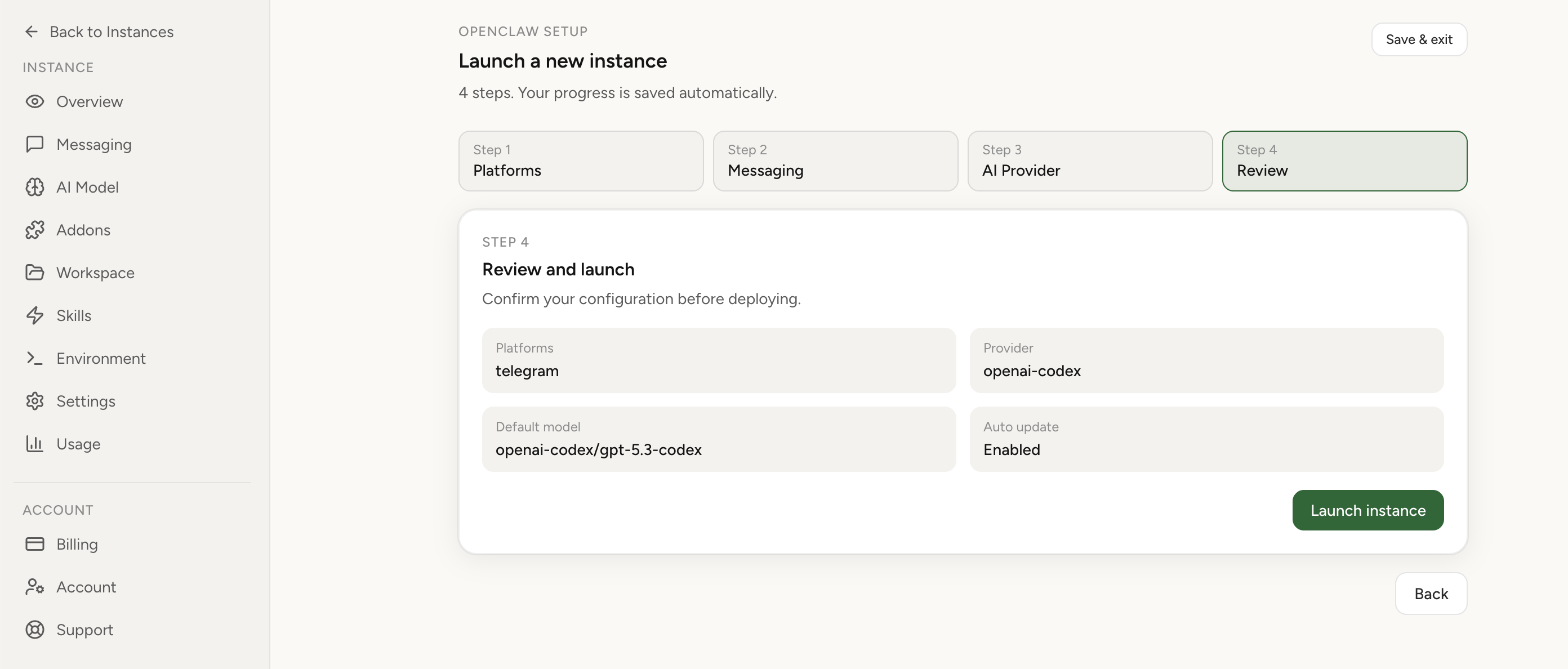
Most operators do not need every possible OpenClaw feature on day one. They need the three or four workflows that justify the system. Write those down before migration. For example: Telegram delivery, Chrome relay access, one cron reminder, one browser task, and one external API integration. If those pass, the migration is on the right track. If you still need to compare your current setup against the supported hosted path, review the OpenClaw setup overview before you cut over.
3) Freeze avoidable changes
Do not migrate during a period of heavy experimentation. If you are simultaneously changing providers, editing prompts, rebuilding channels, and moving hosting, you will not know what caused a failure. The cleaner the change window, the faster the cutover.
The clean migration path
Step 1: import the current instance
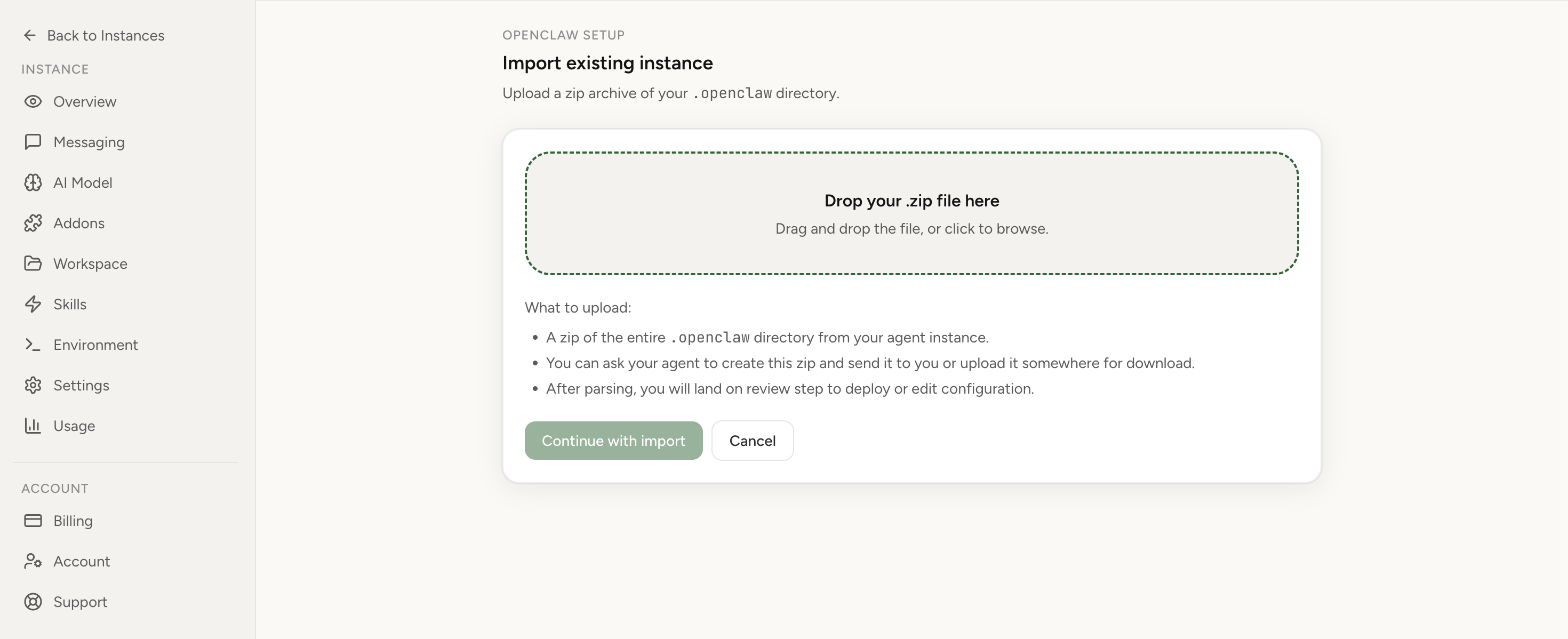
A proper import path is the difference between migration and reimplementation. When import is available, use it. It preserves structure, reduces transcription mistakes, and gives you a better chance of validating a known state instead of reconstructing one from memory.
Contextual next step
If you already have a working self-hosted instance, the easiest path is to avoid rebuilding it manually. Import your current OpenClaw instance in 1 click.
OpenClaw Setup login · Hosted OpenClaw overview
Step 2: validate credentials and integrations first
The fastest way to get a false sense of success is to open the hosted dashboard, see your files, and assume you are done. Start with credentials instead. If providers, channels, or browser-linked capabilities are missing or mis-scoped, everything above them becomes unreliable.
- Confirm provider access works with a real request.
- Confirm your main chat channel can send and receive.
- Confirm browser access works for the exact pattern you rely on.
- Confirm environment variables and addons match the imported state.
Step 3: run your critical workflows end to end
This is where most migrations fail. Operators test one superficial action and stop. Instead, run the workflows that actually matter: the cron job that must fire, the browser action that must attach, the delivery path that must reach you, the prompt that must still load the right workspace context.
Step 4: keep rollback available until the hosted path proves itself
Do not shut down the self-hosted instance just because import finished. Keep it as a rollback target until you have at least one clean pass through the workflows that matter. Migration is complete only when the hosted instance is boring. That is the real success condition.
Causes of painful migrations
- No workflow list: you cannot verify success if you never defined what “working” means.
- Manual rebuilds: recreating files and settings by hand introduces silent mistakes.
- Hidden dependencies: one browser, one relay, one token, or one local path was carrying more of the system than anyone realized.
- Rushed cutovers: the team disables the old instance before proving the new one works.
- No owner: nobody is responsible for the final validation pass.
Typical mistakes to avoid
- Assuming import equals production readiness.
- Changing prompts, models, and hosting in the same move.
- Testing only simple chat when your real dependency is browser control or cron delivery.
- Skipping rollback planning because the import UI looked clean.
- Forgetting to verify business-account or team-access behavior after cutover.
Result verification checklist
- The imported instance is visible and accessible.
- Provider calls work with the expected credentials.
- Channel delivery works both directions where applicable.
- Critical cron jobs or scheduled actions still run.
- Browser access works for your real workflow, not just a demo page.
- Your workspace files and persistent context appear as expected.
- You can still revert to the old setup if a gap appears.
Where managed hosting pays for itself
The real advantage of managed hosting is not that it looks cleaner in a dashboard. It is that the environment becomes easier to trust. You stop relying on one operator’s tribal knowledge. You reduce the number of fragile local steps. You get a clearer path for shared billing, team access, browser relay setup, and supported upgrades. That matters more than shaving a few dollars off the monthly line item.
What to do next
If you want the shortest path from “working but fragile” to “stable and shared,” start with the hosted option that supports import. Review deployment comparisons, see how hosted OpenClaw works on the hosting page, and if browser tasks matter, check the Chrome Extension relay feature before you cut over.
Ready to move? Sign in and import your current OpenClaw instance in 1 click.
FAQ
Should I migrate if I only run one personal instance?
Maybe not. If your setup is stable and you enjoy operating it, self-hosting can still be the right choice. Migration makes more sense when maintenance is becoming repetitive or stressful.
What if I rely on browser automation heavily?
Then browser access should be one of your first validation steps after import. Do not treat it as a later nice-to-have. For many operators, that workflow is the product.
Can I migrate in phases?
Yes, and that is usually smarter. Import first, validate the main workflows, keep rollback live, then retire the old environment once the new one is boring and dependable.
Where should I compare options before deciding?
Start with the comparison page, review the hosted setup on OpenClaw cloud hosting, and verify whether your browser workflow depends on Chrome Extension relay.