OpenClaw file attachments: PDF upload limits and fixes
Problem statement: you open the OpenClaw chat input, click the attachment button, and can select screenshots or images, but PDFs, text files, CSV exports, Markdown notes, and other useful documents are unavailable. In some environments they are greyed out in the picker. In others, a local UI change appears to accept the file, but the agent never receives usable document content. This guide explains how to diagnose the real attachment boundary, choose a safer workaround, and verify that your agent actually read the material before you trust the answer.
- GitHub issue #69447 documents a full image-only attachment path: the web UI picker accepts
image/*, the client-side MIME predicate only allows image types, and the serializer treats uploaded attachments as images. - The same report shows that the gateway is also image-scoped. Its supported offload MIME list is limited to image formats, and the attachment normalizer can drop non-image files instead of delivering them to the model.
- The failure is worse than a simple disabled picker. If a user only patches the UI, the upload can still disappear downstream, creating false confidence that the agent received a PDF or text file.
- Our hosted-ops lesson from document-heavy customer workflows is consistent: a working file handoff is not proven by a successful upload animation. It is proven when the agent can cite, summarize, or act on a specific section of the document.
What is actually limited
Attachment support has two different layers. The first layer is the chat UI: the file input, drag-and-drop handler, preview label, and serializer. The second layer is the gateway: MIME sniffing, size handling, offload rules, media URL creation, and provider-specific message formatting. A document upload only works when both layers agree on the file type and the target model path can use it.
That is why a quick browser-bundle patch is not enough. If the UI lets you pick report.pdf but the gateway still treats every attachment as an image, the file may be rejected, dropped, or transformed into a payload the model cannot read. A proper fix must support the document type end to end: selection, validation, storage, message construction, provider support, error messages, and result verification.
How to confirm which layer is failing
- Test the picker first. Try a small PNG, a small PDF, and a small plain-text file. If the PDF and text file are greyed out, you are blocked at the UI layer.
- Test drag-and-drop separately. Some interfaces gate picker and drag paths differently. If drag-and-drop silently ignores the file, note that as a separate symptom.
- Watch for an explicit error. A clear “unsupported file type” message is much safer than a silent drop. If there is no error, assume the agent may not have received the document.
- Check gateway logs after a test upload. Look for messages about detected non-image files, dropped attachments, oversized payloads, MIME sniffing, or unsupported media.
- Ask a content-specific verification question. Do not ask “did you receive the PDF?” Ask the agent to quote page 2, list the section headings, or extract a number that is not present in your prompt.
- Repeat with a known tiny file. A one-page PDF or ten-line text file removes size as a variable. If the tiny file fails, the problem is format support, not payload size.
Common causes
- Image-only UI validation: the browser input only accepts image MIME types, so documents never leave the user’s machine.
- Image-only serialization: client code packages every attachment as an image object, which is wrong for PDFs, text, Markdown, and spreadsheets.
- Gateway MIME allowlist: even if the UI is changed, the gateway may still allow only JPEG, PNG, WEBP, GIF, HEIC, or HEIF payloads.
- Silent downstream drop: the worst case is a file that appears to upload but is removed before the model request is built.
- Provider mismatch: some model routes support images but not documents; others support documents only through specific APIs or payload shapes.
- Oversized file handling: a large PDF can fail for size even when a small document would be supported through another path.
Do not rely on local UI patching
It is tempting to change the file picker from image/* to */* and call the problem solved. That is the trap. The picker is only the first gate. If the gateway still classifies attachments as images or drops non-image files, your patch creates a more dangerous failure mode: the interface looks permissive while the agent works without the source material.
A safe document workflow needs honest constraints. If PDFs are not supported by your current OpenClaw path, make that visible to the operator and choose a deliberate alternative. Silent acceptance is worse than refusal because it can produce confident answers from incomplete context.
Safe workaround paths
1. Paste a short excerpt when the task is narrow
If the agent only needs one clause, one table row, or one error block, paste the relevant excerpt directly into the message. Include the document title and page or section name. This is the simplest route for small, high-confidence tasks such as explaining one paragraph, rewriting a policy snippet, or extracting a single requirement.
2. Use a stable link for longer documents
For longer PDFs, use a stable source link from Google Drive, a private repository, a documentation site, or another controlled location. Make sure the agent has permission to access it. Then verify access by asking for a specific detail from the document, not just a summary.
3. Use browser access for source-app workflows
Many document tasks are really browser tasks. The file may live in a web app, drive folder, CRM, dashboard, or ticket. If the important work happens inside the browser, use a browser workflow instead of forcing arbitrary file blobs through chat. OpenClaw Setup’s Chrome Extension Relay is designed for cases where the agent needs to work with pages and authenticated browser sessions rather than isolated uploads.
4. Convert only when conversion preserves meaning
Converting a PDF to text can work for clean, linear documents. It is weaker for scanned PDFs, financial tables, legal exhibits, medical forms, and anything where layout changes meaning. If you convert, keep the original nearby and ask the agent to state which sections it used. Never treat OCR output as a perfect substitute without checking it.
5. Split large documents into task-sized chunks
Even when a route supports documents, large files create reliability problems. Split the task by outcome: “extract all renewal dates,” “summarize section 4,” or “compare these three clauses.” Smaller, named chunks make it easier to catch missing pages, bad OCR, or provider context limits.
Fix once. Stop recurring document upload workarounds.
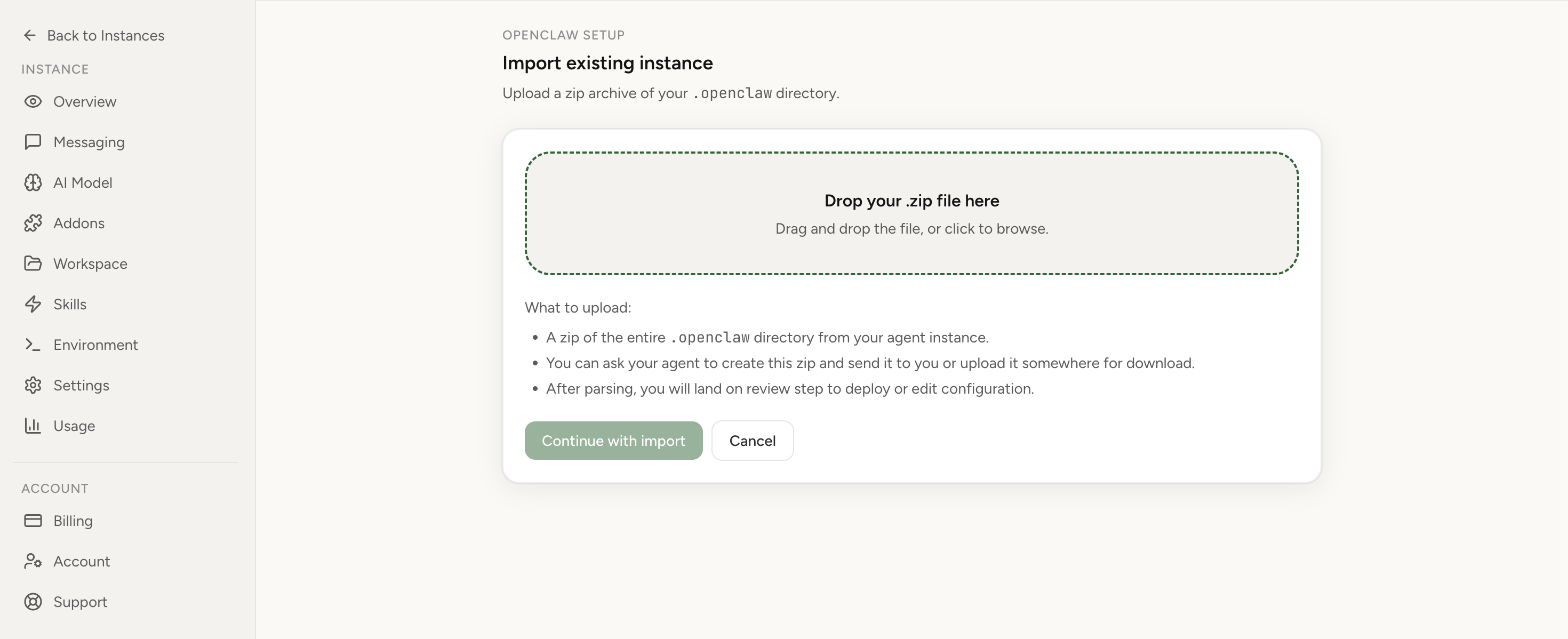
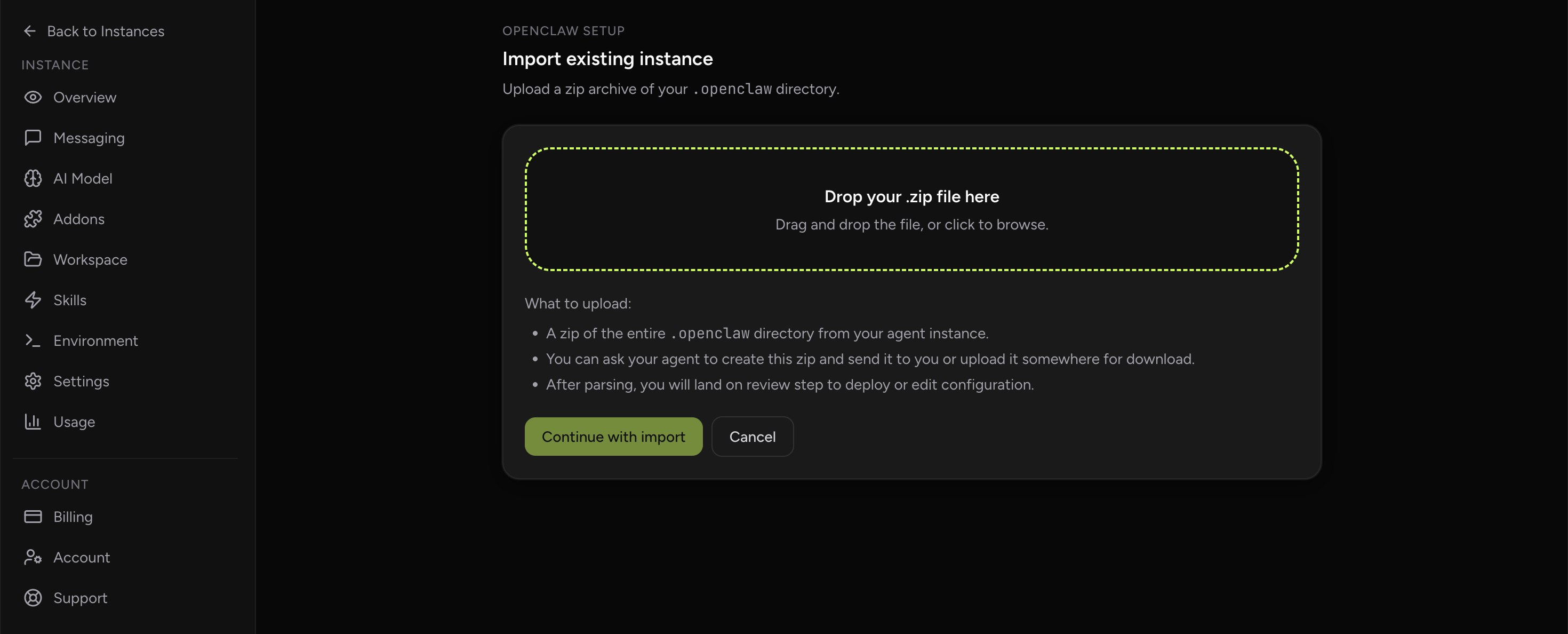
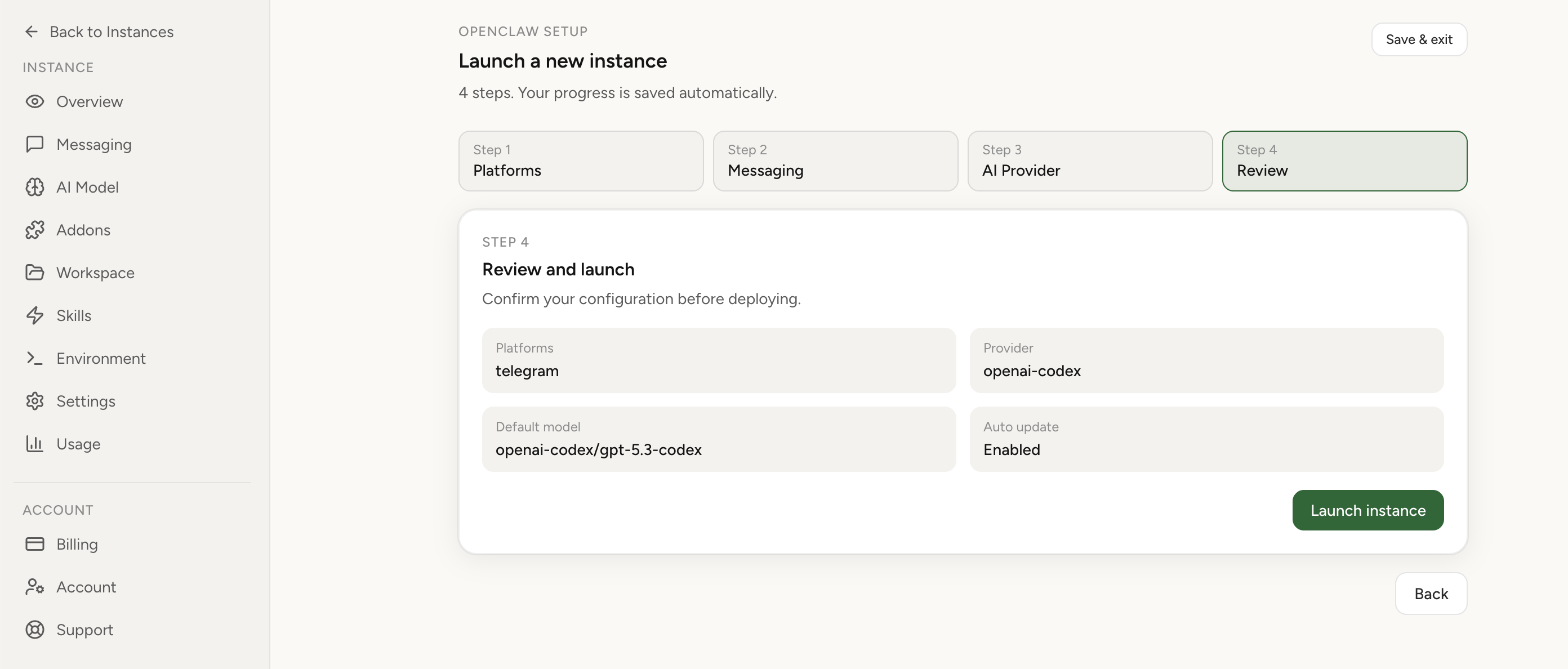
If this keeps coming back, you can move your existing setup to managed OpenClaw cloud hosting instead of rebuilding the same stack. Import your current instance, keep your context, and move onto a runtime with lower ops overhead.
- Import flow in ~1 minute
- Keep your current instance context
- Run with managed security and reliability defaults
If you would rather compare options first, review OpenClaw cloud hosting or see the best OpenClaw hosting options before deciding.
What a durable product fix should include
A complete attachment fix is not just a larger accept attribute. It should include a typed attachment model, clear per-file validation, MIME sniffing, size limits, storage/offload handling, provider-specific message construction, visible user errors, and tests for unsupported files. It should also distinguish “uploaded” from “read by the model.” Those are different states.
The user-facing behavior matters as much as the backend behavior. If a file type is unsupported, say so before the user builds a workflow around it. If a file is too large, explain the limit. If the provider cannot use PDFs on that route, suggest a link, excerpt, or browser workflow. Ambiguous upload states create bad decisions.
Edge cases
Scanned PDFs: a scanned PDF may look like a document to a human but behave like images to software. Use OCR deliberately and verify extracted text before asking the agent to reason over it.
Tables and spreadsheets: copying a table into plain text can destroy columns. Prefer CSV, a controlled sheet link, or a browser workflow where the agent can inspect the original layout.
Confidential documents: do not upload sensitive files to a route you have not reviewed. Check where the file is stored, which model provider receives it, and whether the workflow keeps the document inside your intended boundary.
Provider-specific support: one model route may support images, another may support PDFs, and another may reject both. Diagnose the OpenClaw path and the provider path separately.
How to verify the workaround
- Ask the agent to identify the document title, section headings, and one specific fact.
- Ask for a quote or paraphrase from a section you did not mention in the prompt.
- Ask the agent to state which source path it used: pasted text, link, browser page, or converted file.
- Check one extracted claim against the original document manually.
- For recurring workflows, save a reusable handoff checklist so the next operator does not repeat the same uncertainty.
Typical mistakes
- Assuming a successful file-picker interaction means the model read the file.
- Patching only the UI while leaving gateway validation unchanged.
- Uploading large PDFs without first testing a tiny known-good document.
- Using OCR output for tables or legal text without manual verification.
- Sending confidential documents through a route whose storage and provider behavior you have not reviewed.
- Asking the agent to summarize a document before proving it can see the document.
When to use hosted OpenClaw workflows
If document work is occasional, a careful excerpt or link is enough. If your team regularly asks agents to inspect browser-based documents, dashboards, tickets, contracts, and support records, the better question is where that work should run. Review OpenClaw cloud hosting for managed runtime options, compare tradeoffs on the hosting comparison page, or start from the OpenClaw Setup overview if you are deciding how to structure a reliable document workflow.
Need agents to work inside document-heavy web apps?
For browser-based document workflows, avoid pretending every PDF is just a chat attachment. Use controlled browser access, verify what the agent can see, and keep credentials in the right boundary.
FAQ
Why are PDFs greyed out in the file picker?
The affected attachment path is image-scoped. The picker accepts image MIME types, so PDFs and text files may never be selectable from the chat interface.
Can I rename a PDF as an image to force upload?
No. That creates a misleading MIME mismatch and can make the failure harder to diagnose. Use a supported handoff path instead.
What should I do if the agent claims it read the file?
Verify with a specific question from the document. A general summary can be guessed from the filename or prompt; a section quote or exact value is harder to fake.
Is this only a UI problem?
No. The documented failure includes both UI and gateway behavior. Fixing the UI alone does not guarantee the gateway or model route can handle the document.