OpenClaw local Ollama setup without turning your laptop into production ops
Problem statement: the promise is attractive: run OpenClaw on your own computer, use a local Ollama model, keep model calls on your machine, and connect it to the chat apps you already use. The risk is equally real: a local demo can work in 15 minutes and still be the wrong setup for a team, a business workflow, or an always-on assistant.
This guide gives you a practical setup path and a decision framework. It is not anti-local. Local Ollama is excellent for privacy, experimentation, model testing, and personal workflows. The point is to make the boundary clear: local model execution is not the same thing as reliable hosted operations.
- On May 3, 2026, Perplexity surfaced a new tutorial titled "Run OpenClaw On Your Own Computer In 15 Minutes", focused on local Ollama setup, Telegram connection, and the appeal of no subscription or cloud dependency.
- The current Ollama integration documentation says OpenClaw can be launched with Ollama, asks users to pick local or cloud models, and recommends at least a 64k token context window for local OpenClaw use.
- OpenClaw's Ollama provider docs describe three practical modes: cloud plus local through a reachable Ollama host, cloud only through Ollama, and local only through a reachable local host. They also warn that remote and cloud hosts need real credentials, while local and private hosts can use the local marker.
- Recent social posts from May 5 discussed setup complexity, role-split AI employees, local UI rendering, and OpenClaw as a delivery machine. The useful pattern is clear: people want powerful local control, but they also need support, reliability, and boundaries.
- In OpenClaw Setup operations, the strongest local-to-managed migration cases are not "local is bad." They are cases where the laptop becomes a server: cron jobs, team channels, browser relay, long-running tasks, and security-sensitive credentials all depend on one personal machine staying healthy.
What local Ollama gives you
A local Ollama setup means OpenClaw sends model requests to an Ollama daemon you control. If the model is already pulled and the workflow does not require external services, the model inference can stay on your machine. That is useful for private drafts, file-heavy experimentation, local coding assistance, prompt testing, and learning how OpenClaw behaves without paying per cloud model call.
It also gives you a clean way to test model fit. You can compare a small fast model against a larger reasoning model, check whether the model handles tool instructions well, and decide which tasks deserve a stronger cloud model later. Local first is a good learning path.
What local Ollama does not magically solve
Local model calls do not make every OpenClaw workflow local. If your agent reads websites, sends Telegram replies, joins Discord, touches Slack, checks email, uses a cloud search API, or controls a remote browser, those parts still cross the network. Privacy improves when model inference stays local, but the workflow may still involve external systems.
- Channels still need internet: Telegram, WhatsApp, Slack, Discord, and email are external services.
- Browser tasks still touch websites: local rendering does not make third-party sites private.
- Hardware limits still matter: large context windows can be slow or unstable on constrained machines.
- Uptime becomes your job: if the laptop sleeps, updates, overheats, or changes network, the agent goes with it.
- Security still matters: a local agent with tool access can still read files, execute commands, and send messages.
Setup checklist before you connect real channels
1. Confirm Ollama is reachable
Start with the boring probe: the OpenClaw host must reach the Ollama API endpoint. On the same machine, that usually means the loopback endpoint. On a separate GPU box, it means a private reachable URL and a network path you trust. Do not expose Ollama directly to the public internet just to make setup easier.
2. Pick a model your hardware can actually run
The model that looks best in a benchmark may not be the best OpenClaw model for your computer. Agent workflows need context, tool-call discipline, and enough speed that you do not abandon the assistant. Start with a model that can answer quickly, then increase model size only when the task needs it.
3. Align context settings with reality
The Ollama integration recommends a large context window for local OpenClaw use. That recommendation is practical: agent sessions can carry tool schemas, memory, prior turns, and task context. But a high context setting can also exhaust memory. If replies get slow, the process crashes, or the machine starts swapping, reduce task scope before blaming OpenClaw.
4. Test the model path before a full agent turn
First verify a direct model response. Then verify an OpenClaw chat turn. Then add one tool. Then add one channel. This staged path tells you where the failure starts. If direct model calls work but agent turns fail, the issue may be context, tool schema size, or model instruction following. If chat works but Telegram fails, the model is not the problem.
5. Add channels slowly
The fastest way to make a working demo confusing is to connect every channel at once. Add one private channel, test replies, test stop commands, test a failed model call, and only then add group contexts or shared workspaces. Group chats need stricter permission boundaries because the agent can receive messages from more people and more contexts.
Fix once. Stop recurring local hosting maintenance.
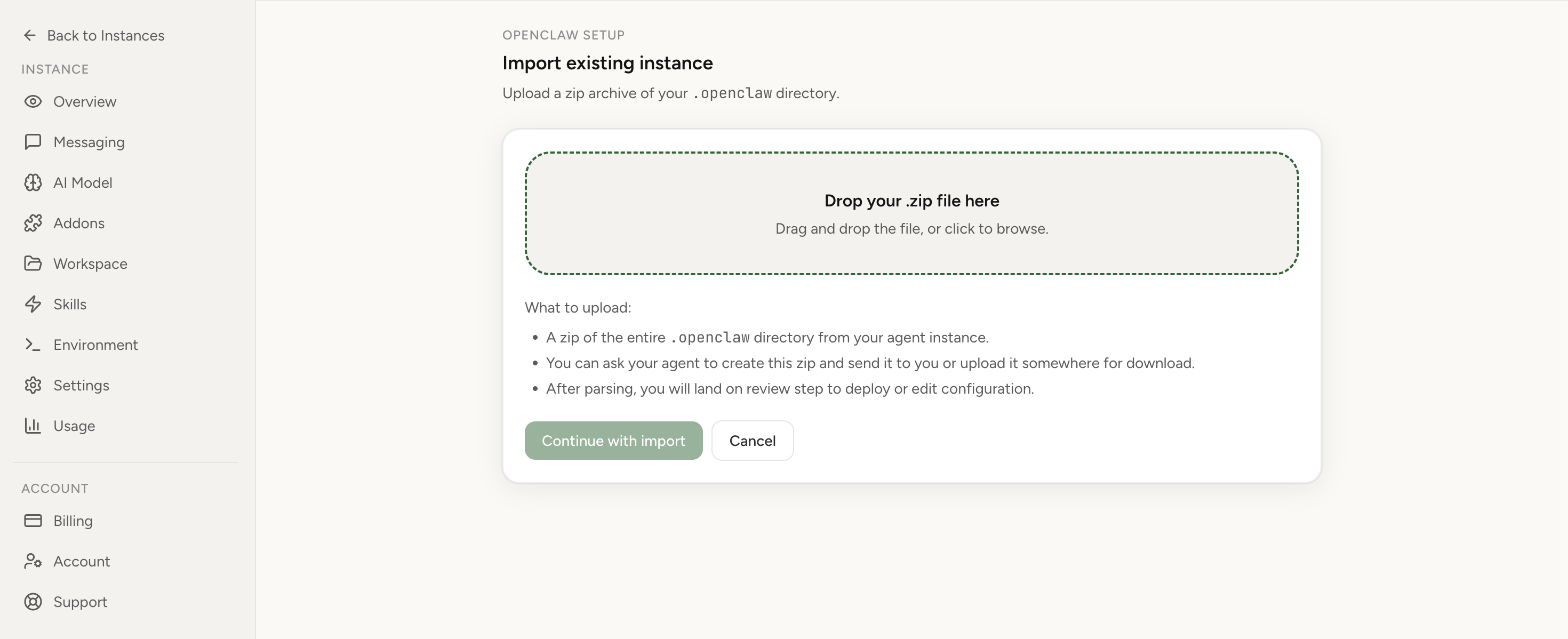
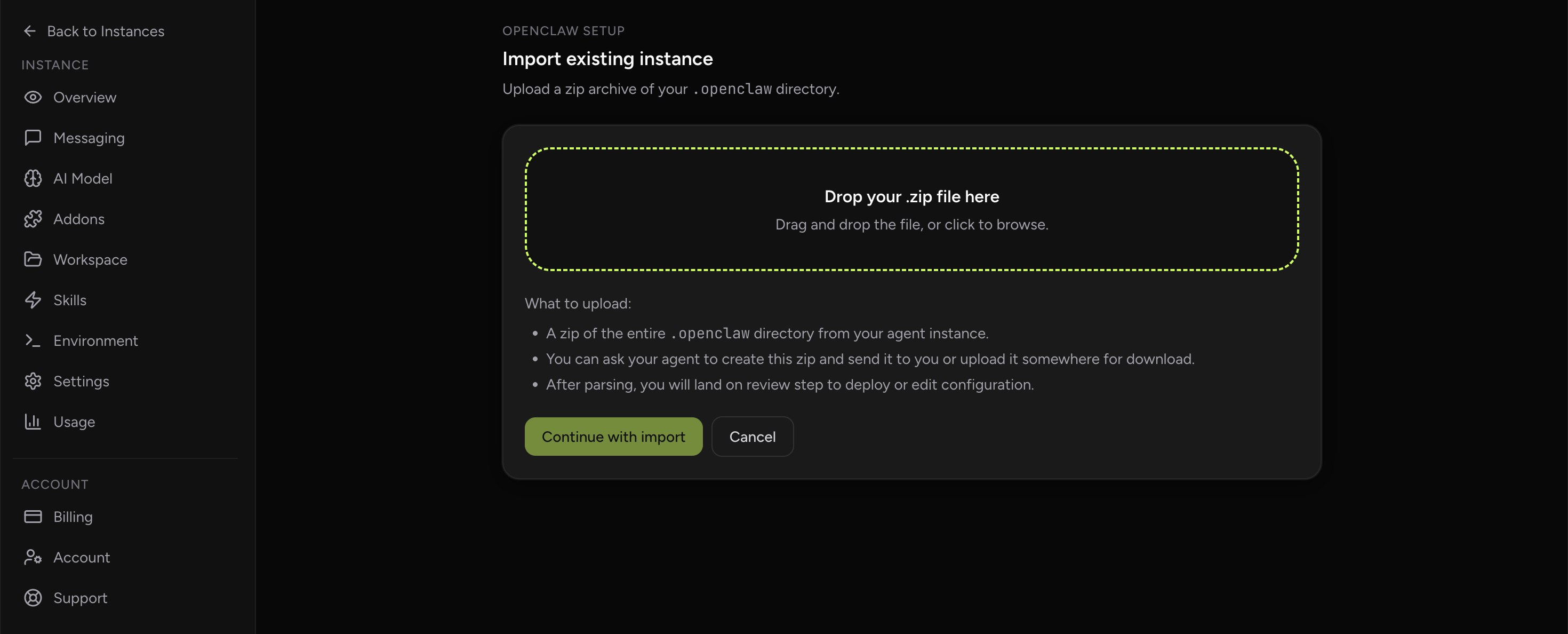
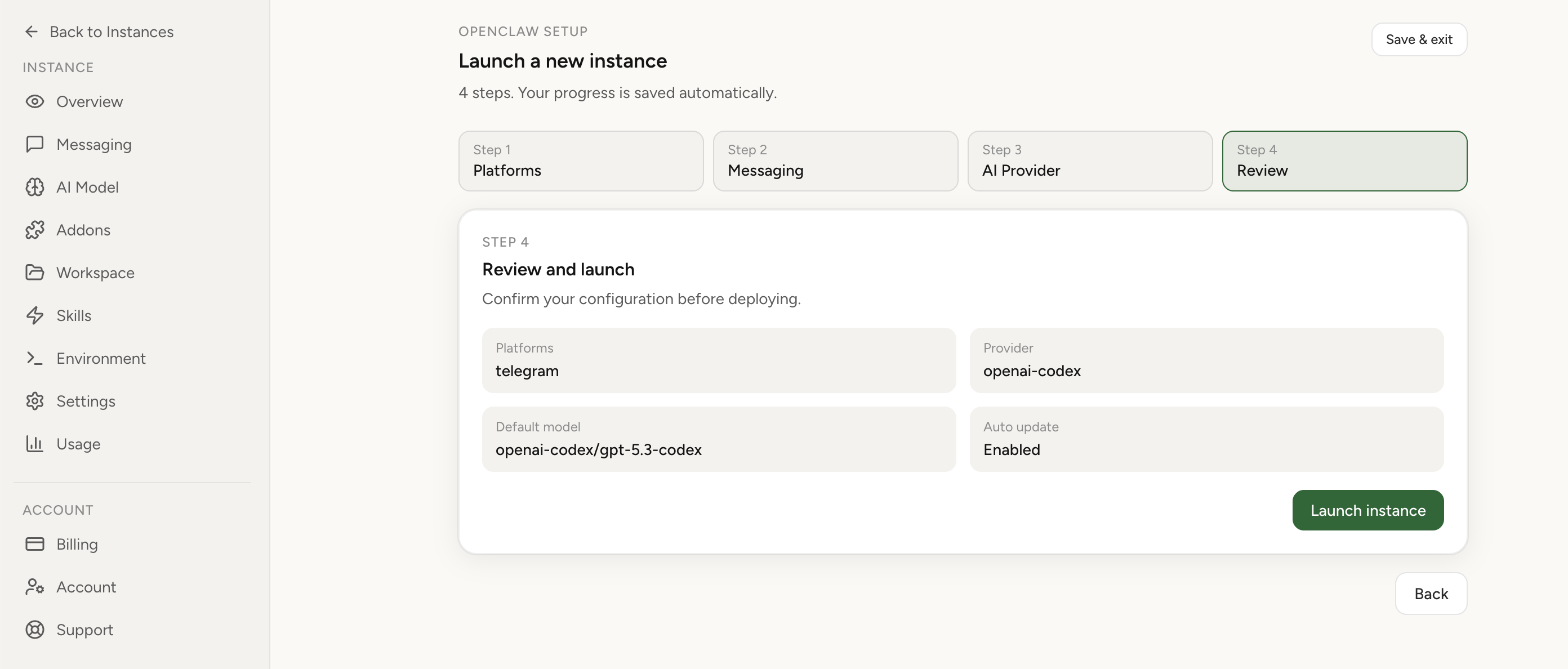
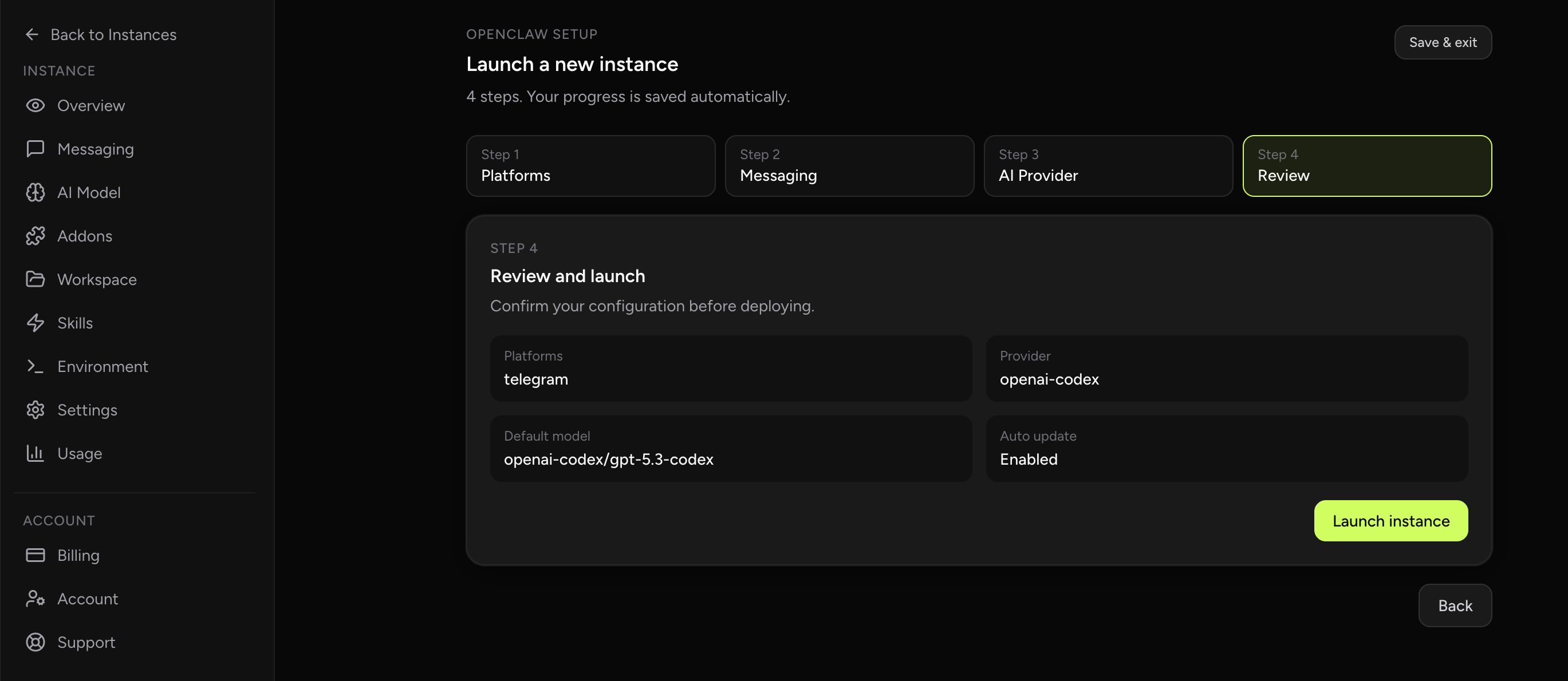
If this keeps coming back, you can move your existing setup to managed OpenClaw cloud hosting instead of rebuilding the same stack. Import your current instance, keep your context, and move onto a runtime with lower ops overhead.
- Import flow in ~1 minute
- Keep your current instance context
- Run with managed security and reliability defaults
If you would rather compare options first, review OpenClaw cloud hosting or see the best OpenClaw hosting options before deciding.
When local is the right choice
Keep OpenClaw local when the primary value is control: you are learning, testing prompts, evaluating models, building a personal assistant, or handling data that should not go through cloud model APIs. Local is also a good fit when you accept downtime and can restart the machine yourself without affecting coworkers or customers.
- You are the only user.
- Most tasks are interactive, not scheduled.
- You can tolerate downtime when the machine sleeps or updates.
- You are comfortable reading logs and changing config.
- Your main concern is model-call locality, not team availability.
When managed hosting is the safer choice
Move to managed hosting when OpenClaw becomes infrastructure. The line is usually crossed when the assistant must answer in shared channels, run scheduled jobs, stay reachable while your laptop is closed, or support a team that should not depend on your local machine.
OpenClaw Setup is built around that line. You can still bring your own providers and choose the right model path, but the instance lives in managed cloud hosting with an import flow, dashboard controls, browser relay support, and operational defaults designed for always-on use. For browser-heavy workflows, see the Chrome Extension relay. For infrastructure fit, read OpenClaw cloud hosting and the managed vs self-hosted comparison.
Diagnostics when local Ollama feels broken
The model does not appear
Check whether the model is pulled in Ollama and whether OpenClaw is pointing at the same Ollama host. If you configured a custom provider, automatic discovery may not behave the same way as the simple local setup. Use the exact model name shown by the reachable Ollama daemon.
The model appears but replies are unusably slow
Reduce context, choose a smaller model, close competing workloads, or move heavy tasks to a cloud model. Long local context can be the difference between a helpful assistant and a machine that spends every turn paging memory.
Direct model calls work but OpenClaw turns fail
The model may be struggling with tool instructions, long context, or multimodal settings. Test a simple chat-only turn, then a single-tool turn. If the simple path works, increase complexity gradually instead of changing every provider setting at once.
OpenClaw works locally but remote access fails
Avoid exposing the gateway publicly without a deliberate security plan. Use a private network, a managed import, or a hosted instance rather than opening random ports. Remote access is where many local demos become fragile production systems.
Typical mistakes
- Using a model that barely fits in memory and then blaming OpenClaw for slow agent turns.
- Assuming "local model" means Telegram, web browsing, and external APIs are also local.
- Connecting group chats before testing private replies and stop controls.
- Running important cron jobs on a laptop that sleeps, roams networks, or gets rebooted casually.
- Putting remote Ollama endpoints on the public internet without proper access control.
FAQ
Can I use local Ollama and managed OpenClaw together?
Yes, but design the network path carefully. A managed instance can use cloud providers easily; connecting it to a private local Ollama host requires a secure reachable path. For many teams, cloud models for hosted workflows and local Ollama for private experiments is the cleaner split.
Is local Ollama cheaper?
It can reduce cloud model spend, especially for high-volume experimentation. It is not automatically cheaper when you include hardware, electricity, setup time, slower turns, and the cost of maintaining an always-on host.
Should I start local or managed?
Start local if you are learning and privacy is the main concern. Start managed if you already know the assistant must be available from shared channels, run cron jobs, support browser workflows, or stay online when your personal machine is off.