OpenClaw team access with Tailscale without pairing loops
Problem statement: you want your team to reach OpenClaw privately through Tailscale, without exposing a public IP and without turning every login into a repair job. Instead, one person gets in, another sees a pairing prompt, browser routes fail after a restart, or the whole setup depends on a hostname that changes the next time the pod rolls. The result is a private-access design that looks secure on paper but feels brittle in daily use.
- Our April 3 worklog for hosted Tailscale support documents live status checks, stable hostname defaults, PVC-backed state, and UDP diagnostics for real OpenClaw instances.
- That same rollout added a label-scoped UDP policy, restart-safe sidecar state, and a stable
TS_HOSTNAMEdefault specifically because rollout-driven name changes broke downstream access patterns. - Fresh upstream issue activity in the last week has clustered around Tailscale Serve and private-access edge cases, including restart behavior, pairing expectations, and browser-route authorization problems.
- The practical lesson is consistent: team access stays stable when private networking, identity, and browser exposure are designed separately instead of being collapsed into one shortcut.
What causes pairing loops in otherwise private setups
Tailscale solves reachability. It does not automatically solve trust, identity, or operator workflow. That distinction is where most OpenClaw team-access problems begin.
A small single-user setup can get away with improvised routing. Teams usually cannot. One person may connect through a remembered path, while another hits a fresh pairing prompt because they are effectively arriving through a different hostname, a restarted browser path, or a route that was never designed for multiple operators.
- Hostname drift: the hostname or route changes after redeploy, so previously trusted paths no longer line up with what users saved.
- Serve-mode assumptions: a browser-facing shortcut is treated like a full access model, even though it may not survive restart behavior or team-wide policy changes.
- Identity confusion: network access is granted, but operator approval, pairing state, or browser authorization are still tied to a narrower trust model.
- One-user testing: the setup was validated by the operator who built it, but not by a second or third user joining from a clean device.
The architecture that holds up better for teams
The simplest durable pattern is this: keep OpenClaw on a private network path, keep the instance hostname stable, keep browser access and chat access explicit, and test restarts as part of the setup, not as an afterthought.
- Use Tailscale for private reachability, not as a catch-all identity layer. Your team should reach the instance privately, but operator trust should still be intentional.
- Use a stable hostname. If the address changes on every redeploy, bookmarks, policies, and browser flows break in ways that look random.
- Separate browser access from generic gateway exposure. Interactive browser workflows are more fragile than plain chat delivery. Treat them as their own access path.
- Test the restart path. A setup that works once but fails after restart is not production-ready.
Diagnostics: find the real failure before you change anything
1. Confirm whether the problem is network reachability or trust flow
First, separate “cannot reach the instance” from “can reach it but still cannot use it correctly.” Teams often conflate the two.
- If the device cannot reach the instance at all, start with Tailscale status, DNS, and hostname resolution.
- If the Control UI loads but asks for pairing or behaves differently per user, the issue is usually trust flow, route design, or stale browser assumptions.
- If browser actions fail while chat access works, inspect the browser-specific path rather than the whole instance.
2. Check whether the hostname is stable across restart
This sounds minor, but it is one of the easiest ways to create phantom team-access issues. Our hosted rollout deliberately moved to stable per-instance hostnames because rollout-specific names break external references after redeploy.
- Restart the instance or redeploy it.
- Confirm that the hostname your team uses does not change.
- Review any bookmarks, docs, or local scripts that may still point to old names.
- If people are using different saved URLs for the same instance, normalize them now.
3. Verify live Tailscale state, not just saved configuration
Saved settings are not enough. You need live status. In our implementation, Tailscale status and tailscale netcheck are surfaced because real access quality depends on runtime state, not only config fields.
- Check whether the instance is actually connected to the tailnet.
- Confirm the assigned IP and hostname match what the team expects.
- Look at UDP status and relay risk. Private access that falls back through weak network conditions can feel inconsistent even when technically “up.”
- Re-run the same check after restart. Some problems only appear there.
4. Test from a second clean user, not the operator device
The operator who set up the system almost always has hidden advantages: remembered trust, cached routes, or prior pairing state. A team-safe setup must work for a second user who is joining fresh.
- Use a second device or second teammate.
- Avoid reusing the operator browser profile.
- Test the full path: reach instance, open UI, perform a browser action, and trigger a real workflow.
- Repeat after restart.
Step-by-step: build a team-safe private access path
Step 1. Start from stable private networking
Give the instance a stable Tailscale identity first. Private access should not depend on pod-specific names or temporary exposure rules. If your stack lets you leave the hostname blank and generates unstable names, fix that before you touch pairing logic.
Step 2. Keep browser access explicit
Browser control often fails first because it has more moving parts than a normal chat response. If your team needs browser workflows, document exactly how those users should connect and what permissions they need. When appropriate, point teams toward the dedicated browser path instead of trying to tunnel everything through one generic route.
If you need a safer reference point, compare the supported options in Chrome Extension Relay and the broader tradeoffs on the managed vs self-hosted comparison page.
Step 3. Define who should pair and who should only use
Not every teammate should have the same operational responsibility. The people who approve devices or manage operators should be explicit. Everyone else should get a documented access path that does not require re-learning the stack.
Step 4. Make restart behavior part of acceptance
Restart the gateway. Restart the pod. Re-open the saved URL. Trigger one real task. If the team can only use the setup until the next maintenance cycle, you do not have reliable private access yet.
Step 5. Record the working path in one place
Teams lose hours to “I used the other address” incidents. Publish one internal runbook with the correct hostname, the expected login or pairing flow, and the exact steps to verify connectivity after changes.
Edge cases that keep surprising teams
- UDP degradation: the instance is reachable, but poor direct connectivity causes sluggish behavior that looks like a UI bug.
- Saved stale routes: a browser keeps opening an old hostname or old route that the operator forgot existed.
- Partial success: chat messages work, but browser control or canvas access fails because those paths are stricter.
- Mixed device policies: one teammate connects from a managed work machine with a different security policy than everyone else.
- Serve-specific drift: a route that worked before restart no longer maps the same way after the gateway comes back.
How to verify the fix is real
- Reach the instance by the same stable hostname from two different users.
- Confirm both users see the expected UI behavior, not one remembered path and one fresh pairing prompt.
- Run one real browser or tool workflow, not just a login check.
- Restart the instance and repeat the test.
- Check live Tailscale status again and make sure hostname, IP, and connectivity signals still match.
Typical mistakes that make this worse
- Assuming private IP reachability means the trust model is finished.
- Letting users keep multiple old hostnames in bookmarks.
- Testing only from the operator device that already has remembered state.
- Using a browser-exposure shortcut as the main long-term team access design.
- Skipping restart validation because everything looked fine immediately after setup.
Need a cleaner path for private team access?
If your team is stuck between pairing loops, fragile browser routes, and constant restart checks, compare the supported paths first. Start with OpenClaw hosting options, review OpenClaw cloud hosting, or go straight to the dashboard if you are ready to move the current instance onto a setup with lower operational drift.
FAQ
Can Tailscale alone remove all pairing prompts?
No. It removes the need for public exposure, but it does not replace every trust decision inside OpenClaw. That is why teams need a deliberate operator and browser-access design.
Should every teammate manage Tailscale settings?
Usually no. Most teams do better when one or two operators manage the network path and everyone else gets a stable documented way to use the instance.
Why do restarts reveal problems that were hidden before?
Because many private-access mistakes are really state problems. Restarting removes the temporary luck that made the path appear stable.
What if I just want private remote access without becoming the network team?
Then the deciding factor is usually operational overhead, not networking theory. If private access keeps becoming a recurring incident, a managed runtime is often the simpler answer.
Fix once. Stop recurring Tailscale team-access and pairing-loop problems.
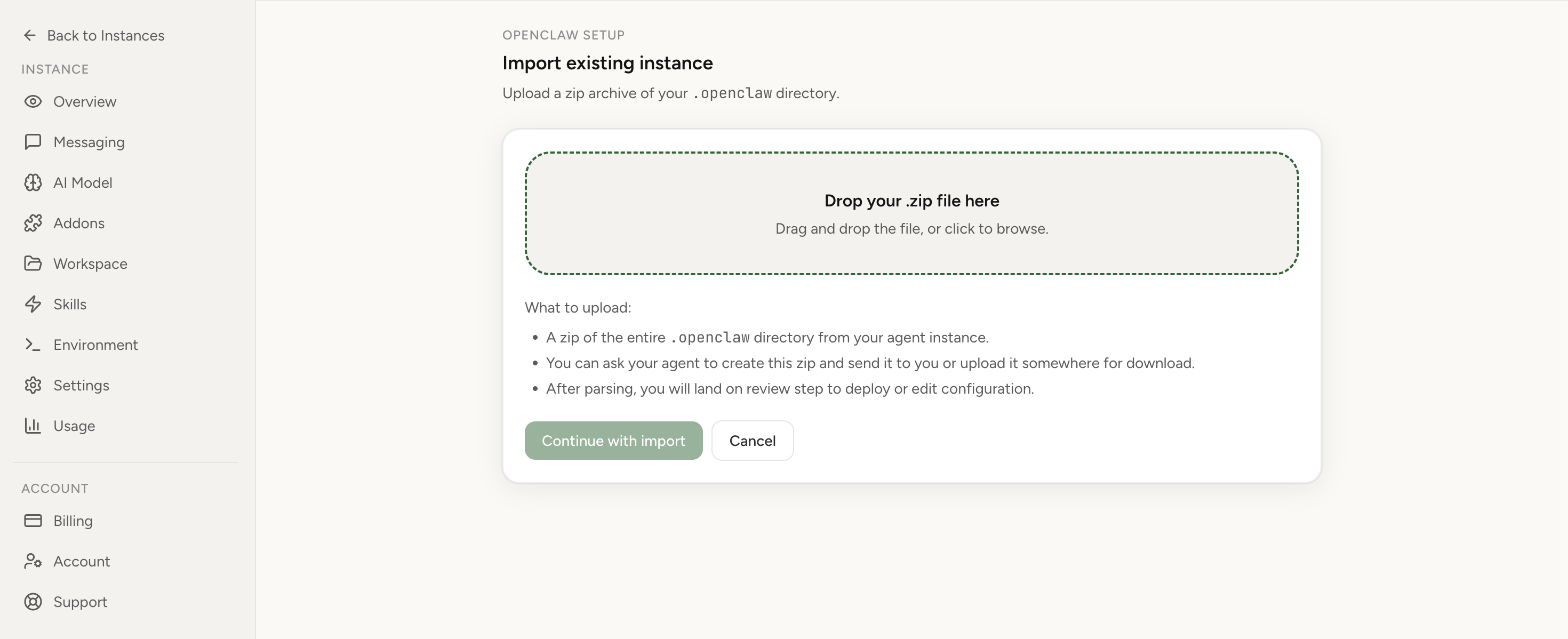
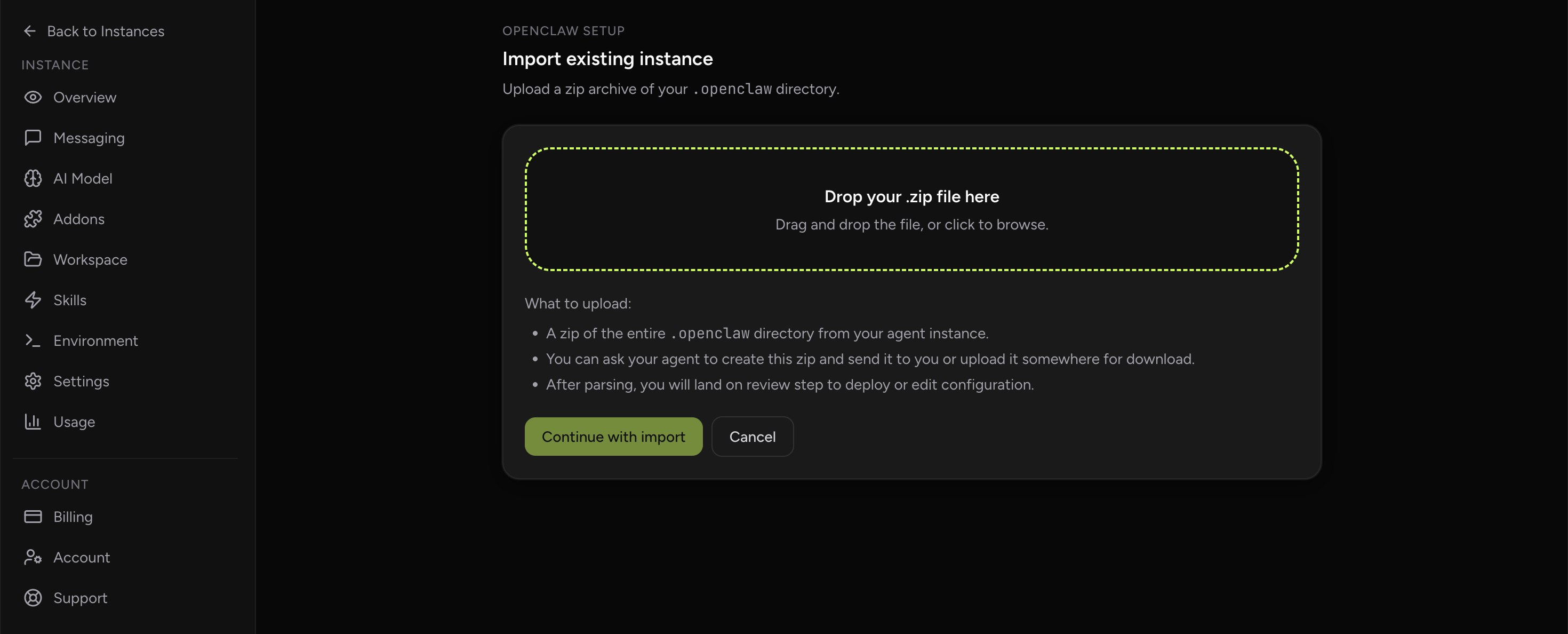
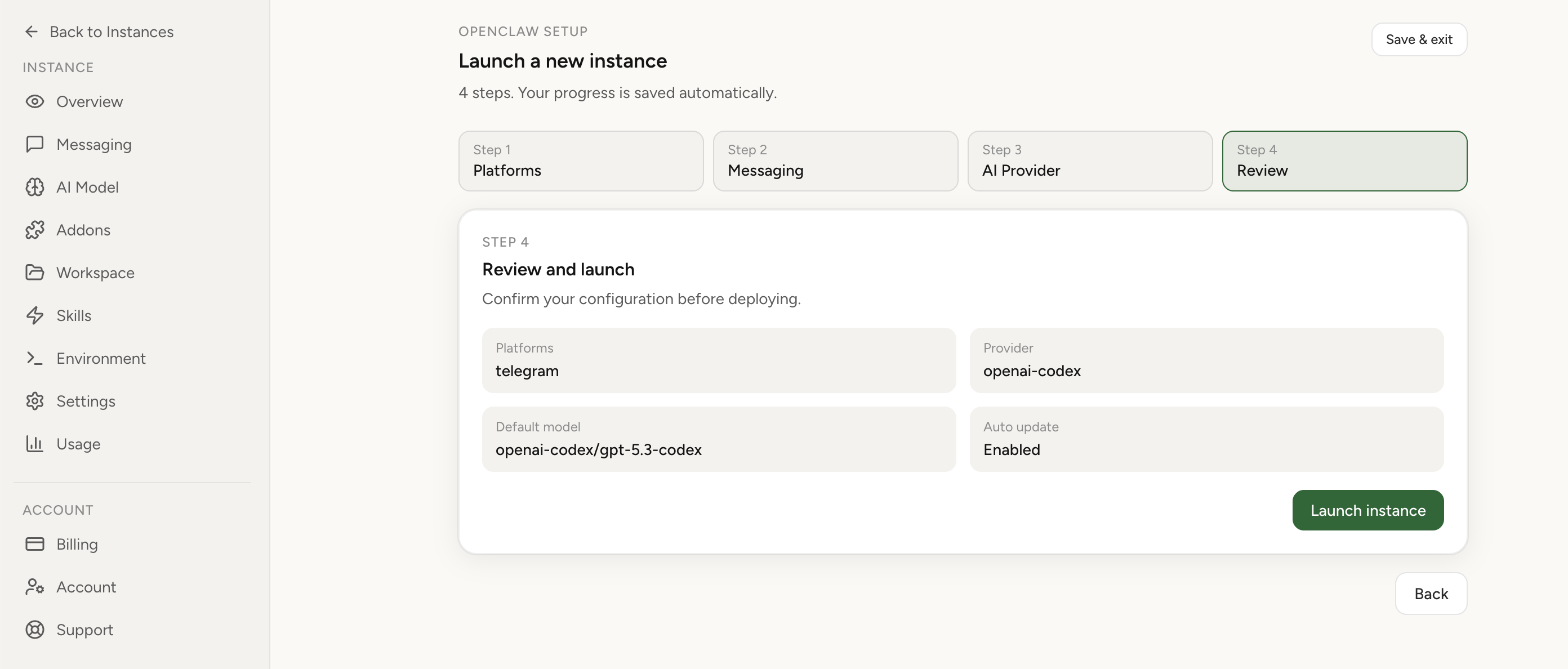
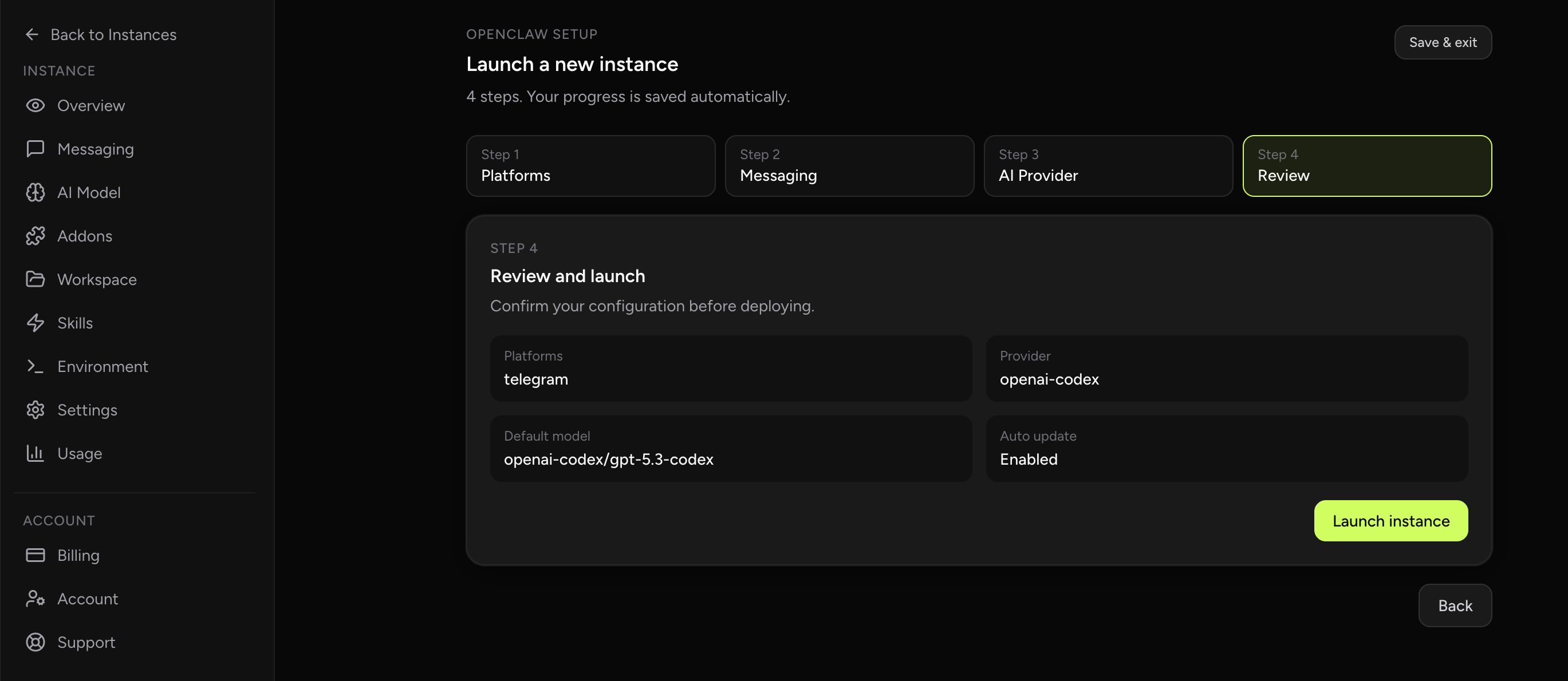
If this keeps coming back, you can move your existing setup to managed OpenClaw cloud hosting instead of rebuilding the same stack. Import your current instance, keep your context, and move onto a runtime with lower ops overhead.
- Import flow in ~1 minute
- Keep your current instance context
- Run with managed security and reliability defaults
If you would rather compare options first, review OpenClaw cloud hosting or see the best OpenClaw hosting options before deciding.
Final takeaway
The stable way to give a team private OpenClaw access is not to pile more shortcuts on top of a fragile route. It is to keep private networking stable, keep trust decisions explicit, verify restart behavior, and stop treating one successful operator login as proof that the system is ready for a team. Once you do that, pairing loops stop feeling mysterious. They become exactly what they are: a sign that the access design needs to be cleaned up.