OpenClaw Telegram timeout on Windows: diagnose Node 24, proxy, and gateway pressure
Problem statement: OpenClaw on Windows sends a Telegram typing indicator, then no reply arrives.
Logs may show fetch-timeout 10000ms, especially around Node 24 environments. The bot token often looks correct,
the chat exists, and the gateway appears to be running, which makes the incident easy to misdiagnose.
The correct fix is not to delete the bot, rotate every secret, or reinstall Windows. You need to distinguish Telegram Bot API reachability, OpenClaw response generation, local gateway event-loop stalls, proxy routing, and Windows firewall or network edge cases. Each cause has a different test and a different recovery path.
- Public OpenClaw reports include Telegram timeout and Windows/runtime concerns in GitHub issues #76013, #75834, and #75759.
- Public channel-delivery reports from May 2026 include Telegram not receiving PPTX attachments, gateway HTTP surface timeouts while the service remains active, and event-loop saturation with node-list probe timeouts. These do not prove one Telegram-specific root cause, but they match the pattern where a channel symptom can be caused by runtime pressure elsewhere.
- Related networking and runtime changes have appeared in project discussion around PR #74151 and issue #75895.
- Hosted operations evidence has shown cron status marked okay while delivery status is not delivered and completion announcements retry until a 120000ms timeout. That is why this guide verifies Bot API calls, gateway responsiveness, and final channel delivery separately.
- OpenClaw Setup managed-hosting operations handle this class of incident with channel health checks, staged config changes, last-known-good snapshots, and rollback/import gates before production channels are reconnected.
What the typing indicator proves, and what it does not prove
Telegram typing only proves one narrow thing: OpenClaw or a connector was able to ask Telegram to display activity at some point.
It does not prove the assistant generated a response, that sendMessage works, that the proxy path is healthy, or that the gateway can
finish the request under load. Many teams waste time because they treat typing as proof that Telegram is healthy.
In a timeout incident, split the path into three parts: Bot API reachability, assistant response generation, and outbound delivery. A failure in any of those parts can produce the same user-facing symptom.
Likely causes to separate
- Telegram reachability: DNS, TLS, proxy, VPN, or firewall rules prevent reliable access to
api.telegram.org. - Credential or chat routing: the bot token works, but the target chat, group topic, or permission set is wrong.
- Gateway pressure: OpenClaw is too busy to finish the Telegram request before the timeout window closes.
- Response generation delay: the assistant has not produced a reply yet, so Telegram delivery is blamed for a model or tool stall.
Step 1: preserve the exact timeout log
Before changing anything, capture one clean log window around one Telegram message. Include the message text, timestamp, chat type, whether typing appeared, and the exact timeout line. Do not paste the bot token into tickets or chats.
# Capture Telegram and fetch timeout signals
openclaw logs --tail 500 | grep -Ei 'telegram|fetch-timeout|10000|undici|sendChatAction|sendMessage|getMe|proxy|timeout'

# Capture process pressure on Windows PowerShell if you run OpenClaw locally
Get-Process node | Select-Object Id,CPU,WorkingSet,StartTime,Path

# Write down the test phrase and timestamp
# Example: 10:02:11 sent "healthcheck-telegram-windows-001"
Step 2: test api.telegram.org from the same host
Testing from your laptop browser is not enough if OpenClaw runs in a different shell, WSL environment, corporate network, proxy, or Windows service. Test from the same host and environment that runs the gateway.
# PowerShell: verify DNS and HTTPS reachability
Resolve-DnsName api.telegram.org
Test-NetConnection api.telegram.org -Port 443

# If curl is available, test TLS connection without exposing tokens
curl -I https://api.telegram.org

# Do not paste your real token into shared logs
# Use token tests only in a private shell you control
If DNS or port 443 fails here, OpenClaw cannot reliably reach Telegram. Focus on network, firewall, proxy, VPN, and DNS before touching OpenClaw config.
Step 3: compare getMe and sendMessage
The Telegram Bot API has different operations. getMe can succeed while sendMessage fails because message delivery requires
a valid chat ID, permissions, routing, and payload handling. Test both from the same host.
# Private shell only. Replace placeholders and do not save output with the token.
$env:BOT_TOKEN="123456:REDACTED"
$env:CHAT_ID="123456789"

curl "https://api.telegram.org/bot$env:BOT_TOKEN/getMe"
curl -X POST "https://api.telegram.org/bot$env:BOT_TOKEN/sendMessage" `
  -d "chat_id=$env:CHAT_ID" `
-d "text=OpenClaw Telegram delivery test"- getMe fails: token, DNS, proxy, TLS, or outbound network is the first suspect.
- getMe succeeds but sendMessage fails: inspect chat ID, bot permissions, group privacy, topic routing, or payload rules.
- Both succeed outside OpenClaw: focus on gateway pressure, proxy variables inside OpenClaw, or channel integration code path.
Step 4: inspect proxy environment and routing
Windows setups often have proxy differences between PowerShell, Git Bash, WSL, services, and desktop apps. Node may inherit one environment while curl uses another. Check both uppercase and lowercase proxy variables, plus any OpenClaw channel config that overrides HTTP behavior.
# PowerShell proxy environment
Get-ChildItem Env:HTTP_PROXY,Env:HTTPS_PROXY,Env:NO_PROXY,Env:http_proxy,Env:https_proxy,Env:no_proxy -ErrorAction SilentlyContinue

# Windows proxy view
netsh winhttp show proxy

# OpenClaw config surface, if available
openclaw config get gateway.channels
openclaw config get proxy
A stale proxy can create exactly the kind of 10-second timeout that looks like a Telegram bug. If you change proxy settings, retest getMe,
sendChatAction, and sendMessage separately.
Step 5: distinguish response generation from delivery failure
Now run the same simple prompt through Control UI and Telegram. If Control UI replies quickly while Telegram times out, response generation is probably healthy and the channel path is suspect. If Control UI also stalls, Telegram is not the primary cause.
- Send "reply with ok" in Control UI and record first-token time.
- Send the same text to Telegram and record typing time and final delivery time.
- Check whether OpenClaw generated a final assistant message in logs.
- If generated but not sent, inspect Telegram
sendMessageresult and payload size. - If not generated, inspect model provider, tools, memory locks, and gateway event-loop pressure.
Step 6: check gateway event-loop overload
A Telegram timeout can be a symptom of local overload. If the gateway is busy with cron jobs, plugins, browser sessions, file watchers, or reconnect loops, it may not service Telegram requests before the fetch timeout. This is especially confusing when a small API test works in isolation but the full OpenClaw path fails under pressure.
- Pause high-frequency cron jobs temporarily; do not delete them.
- Reduce browser automation or relay reconnect loops during the test.
- Use one clean session with no heavy tool requirement.
- Watch CPU and memory while sending one Telegram message.
- Compare timing before and after reducing pressure.
Step 7: Windows firewall and network edge cases
Windows can block or redirect network traffic in ways that do not appear in OpenClaw logs. Check firewall rules, antivirus network inspection, corporate VPN clients, DNS filtering, IPv6 behavior, and whether the process runs as a different user than your terminal test.
# List enabled firewall rules that mention node or OpenClaw names
Get-NetFirewallRule -Enabled True | Where-Object {$_.DisplayName -match 'node|OpenClaw|OpenClaw'} | Select-Object DisplayName,Direction,Action,Profile

# Check route and DNS context
ipconfig /all
route print

# Try a clean direct network if policy allows it: phone hotspot or non-corporate network
If the issue disappears on a clean direct network, document that result before changing application config. You likely have a routing, proxy, inspection, or firewall problem.
Step 8: do not delete tokens or chats prematurely
Token rotation is appropriate when a token is exposed or proven invalid. It is harmful when used as a first response to a timeout. Deleting bot tokens, chats, or channel records creates new variables: changed chat IDs, missing group permissions, topic misrouting, and broken saved config.
- Prove whether
getMeworks before rotating the token. - Prove whether
sendMessageworks before recreating chat setup. - Save channel config before editing it.
- Make one change at a time and rerun the same test phrase.
Step-by-step recovery path
- Freeze config and capture one timeout log window.
- Test
api.telegram.orgDNS and HTTPS from the same host. - Run private
getMeandsendMessagetests. - Inspect proxy variables and Windows proxy configuration.
- Run Control UI versus Telegram with the same short prompt.
- Temporarily lower gateway pressure by pausing non-critical cron and plugin work.
- Test from a clean direct network if proxy or VPN is suspicious.
- Restart only after evidence capture, then rerun the exact same checks.
- Rollback or import the instance if production Telegram replies remain blocked.
If Telegram is a business channel rather than a hobby integration, managed hosting is often the simpler recovery path. OpenClaw Setup provides hosted runtime isolation, channel checks, and a cleaner rollback/import process. Review OpenClaw cloud hosting when Windows host drift or local proxy policy keeps taking the channel offline.
Fix once. Stop recurring Telegram timeout loops.
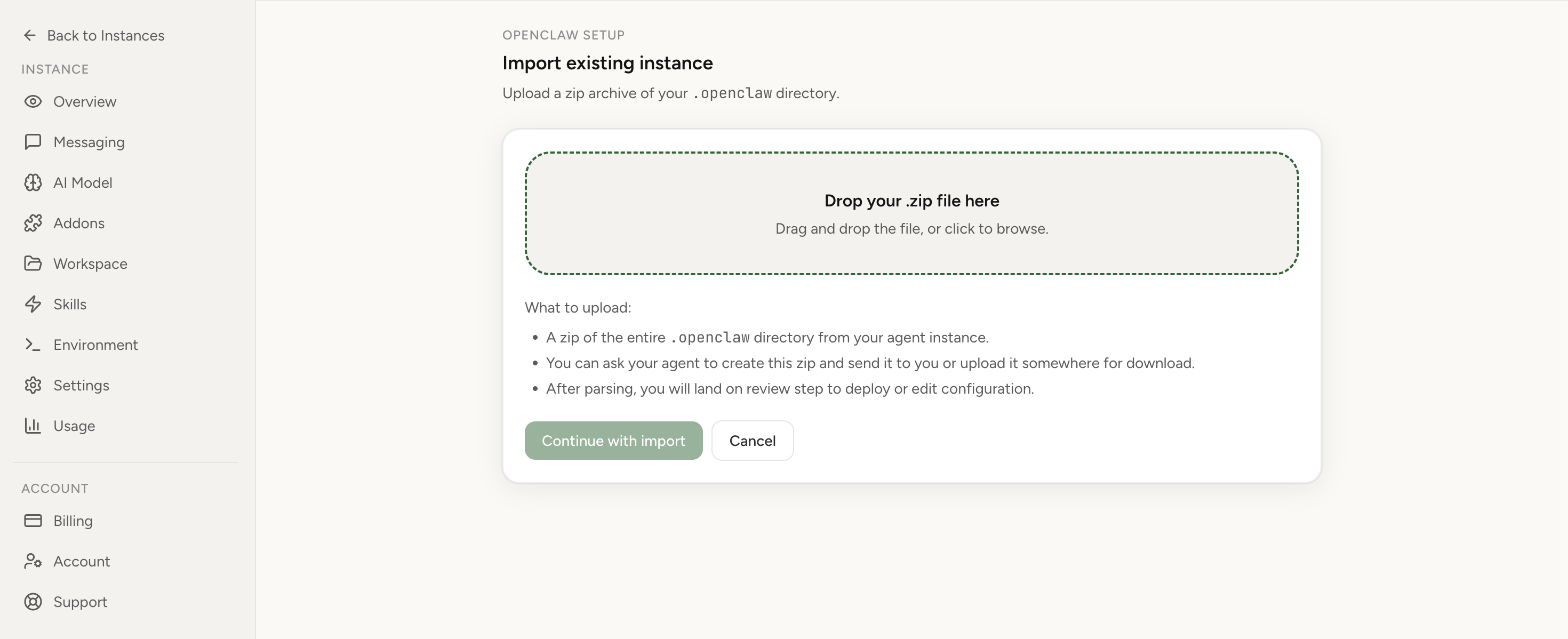
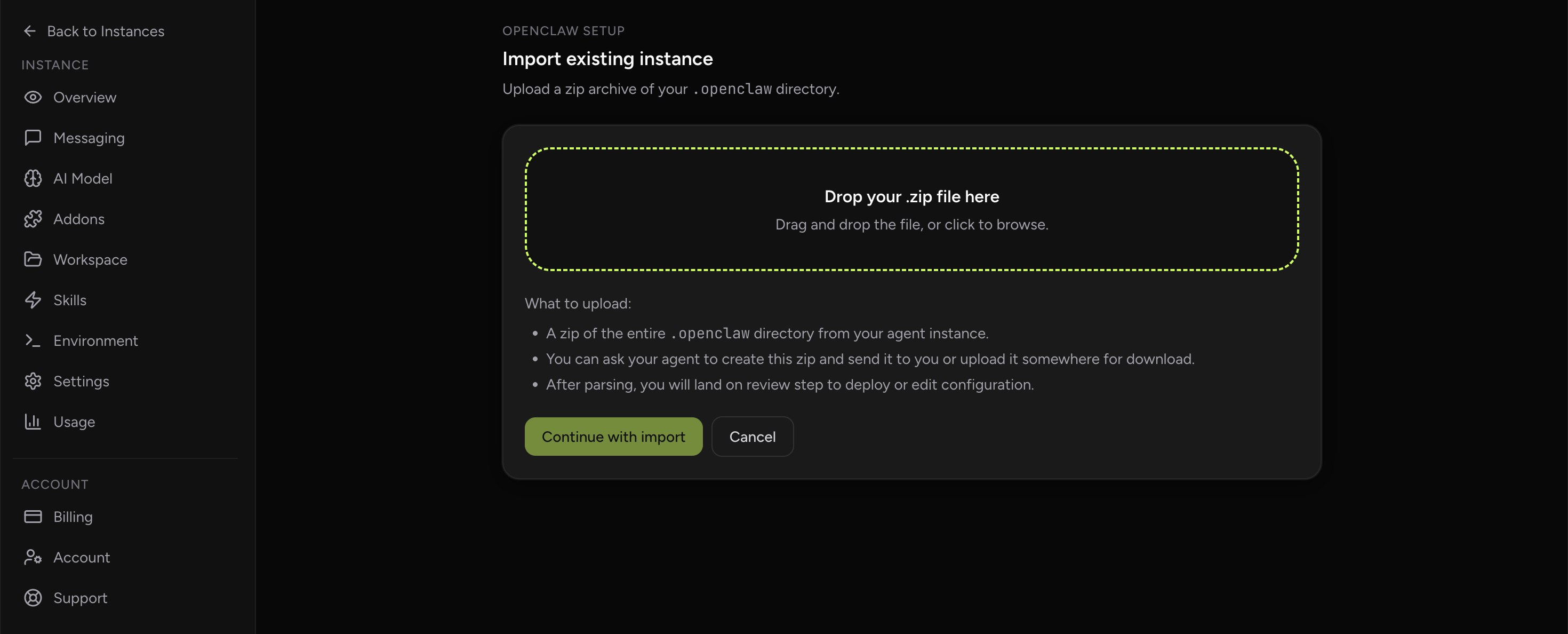
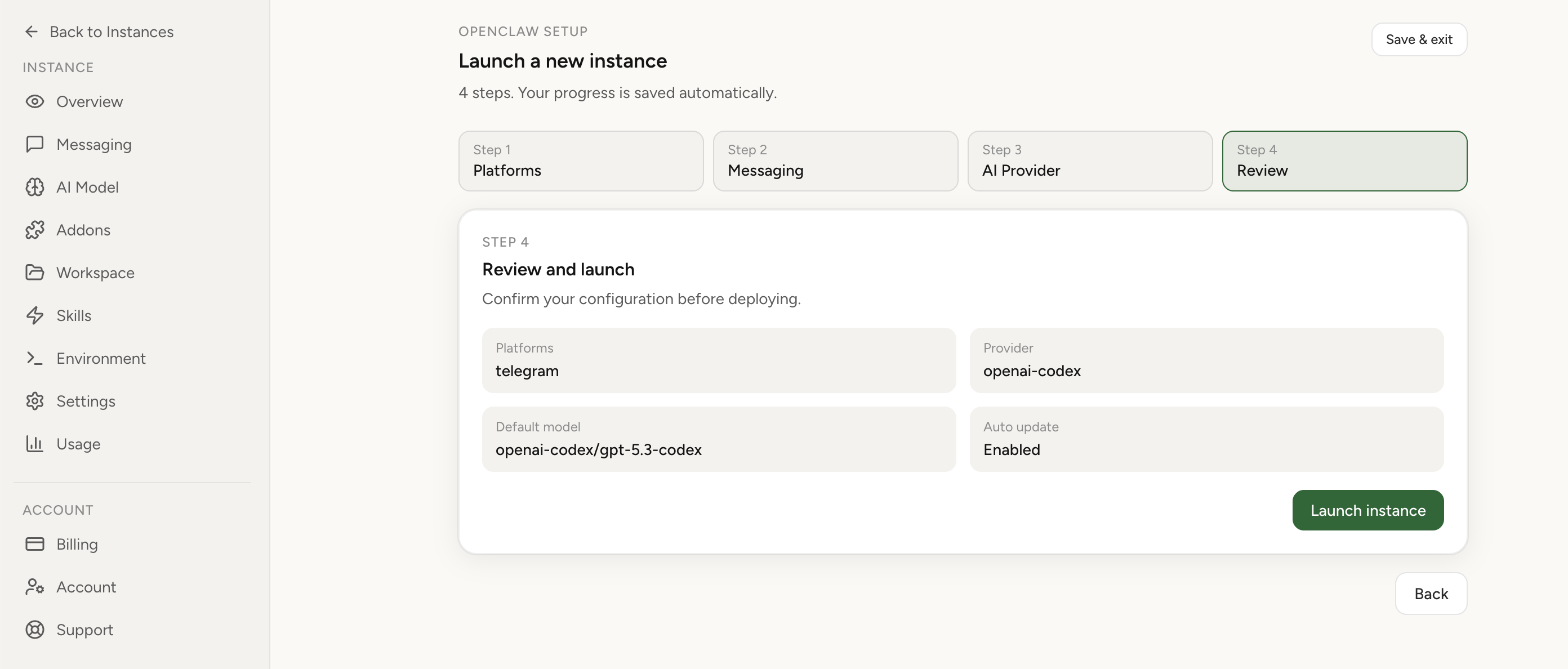
If this keeps coming back, you can move your existing setup to managed OpenClaw cloud hosting instead of rebuilding the same stack. Import your current instance, keep your context, and move onto a runtime with lower ops overhead.
- Import flow in ~1 minute
- Keep your current instance context
- Run with managed security and reliability defaults
If you would rather compare options first, review OpenClaw cloud hosting or see the best OpenClaw hosting options before deciding.
Edge cases that change the fix
- Group topics: a bot can work in a direct chat but fail in a forum topic when the thread ID is missing or stale. Test the exact target topic, not only the bot token.
- Large responses or attachments: text replies, images, and documents may use different Telegram API paths. If short text works but files fail, diagnose payload size, MIME type, and attachment handling separately.
- Service account mismatch: OpenClaw may run under a different Windows user than your terminal. Environment variables, proxy settings, certificates, and firewall permissions can differ between those users.
- IPv6 and DNS filtering: some networks resolve Telegram endpoints but route them unreliably. Compare DNS results and try a known-clean network before changing application settings.
- Gateway pressure after a restart: the first message after restart might pass, then later messages time out as cron jobs, browser sessions, or retry loops resume. Keep testing after background work starts again.
These edge cases matter because they prevent false confidence. A single green check can hide a second failure path. The safest pattern is to test the exact chat, exact host user, exact network route, and exact payload type that failed for the real user.
Result verification
Verify in layers. A complete fix proves Bot API reachability, message delivery, and real agent response.
getMesucceeds from the same host that runs OpenClaw.sendChatActionsucceeds without timeout.sendMessagesucceeds to the target chat or topic.- Control UI responds to a clean prompt within normal latency.
- Telegram receives a real assistant reply, not only a typing indicator.
- Logs show no repeated
fetch-timeout 10000msfor the same path.
Typical mistakes
- Testing Telegram from a browser while OpenClaw runs in a different network context.
- Rotating bot tokens before checking
getMeandsendMessage. - Ignoring lowercase proxy variables inherited by Node.
- Assuming typing means final message delivery is healthy.
- Restarting repeatedly without preserving the first timeout log.
- Leaving cron and plugin pressure active during channel diagnosis.
FAQ
Can Node 24 be involved without being the only cause?
Yes. Runtime behavior, fetch timeout handling, proxy inheritance, and package changes can interact with Windows networking. Treat Node 24 as one part of the environment, then prove the failing request path.
Why does sendChatAction work but sendMessage fail?
They are different Telegram API calls. Chat action can be accepted while final message delivery fails because of chat ID, topic routing, permissions, payload formatting, or timeout during the later call.
Should I move OpenClaw from Windows to a hosted Linux runtime?
If Windows networking, proxy policy, or desktop sleep keeps breaking production channels, yes, it is worth considering. A hosted runtime removes many local network variables and gives the team a clearer recovery path.
What is the minimum proof that the incident is fixed?
Prove getMe, sendChatAction, sendMessage, and a real OpenClaw assistant reply from the affected Windows host.
If all four pass repeatedly and timeout logs stop, the immediate incident is resolved.
Related pages: compare deployment options at /compare/, review the hosted path at /openclaw-cloud-hosting/, keep self-hosted setup notes at /openclaw-setup/, and use Chrome Extension relay when browser access should stay separate from channel reliability.